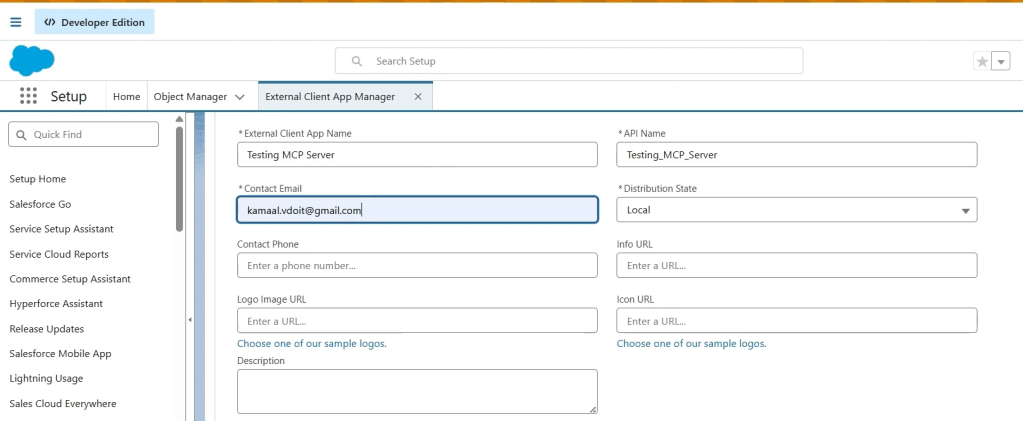
Step 1 : Go to Setup->External Client App Manager -> Click New External Client App
Enter External Client App Name, API Name and Contact Email
Enable OAuth Settings
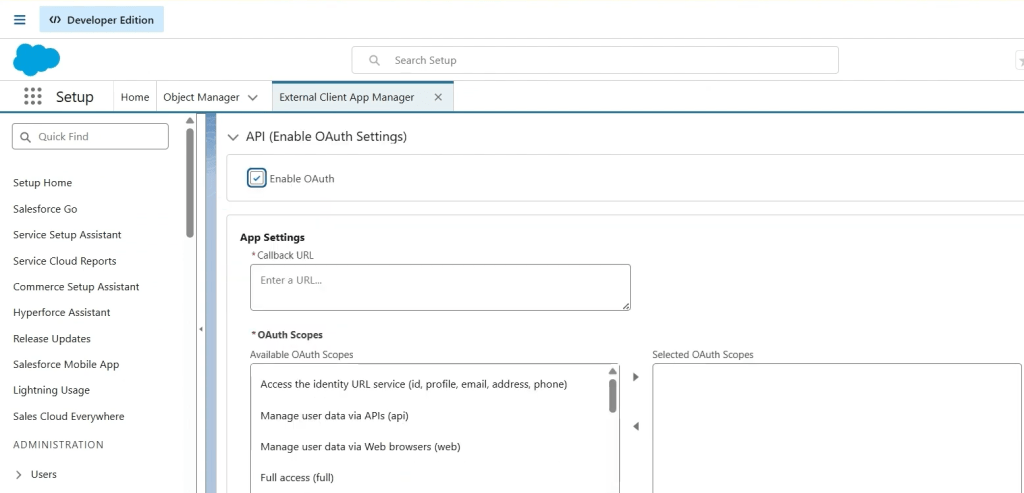
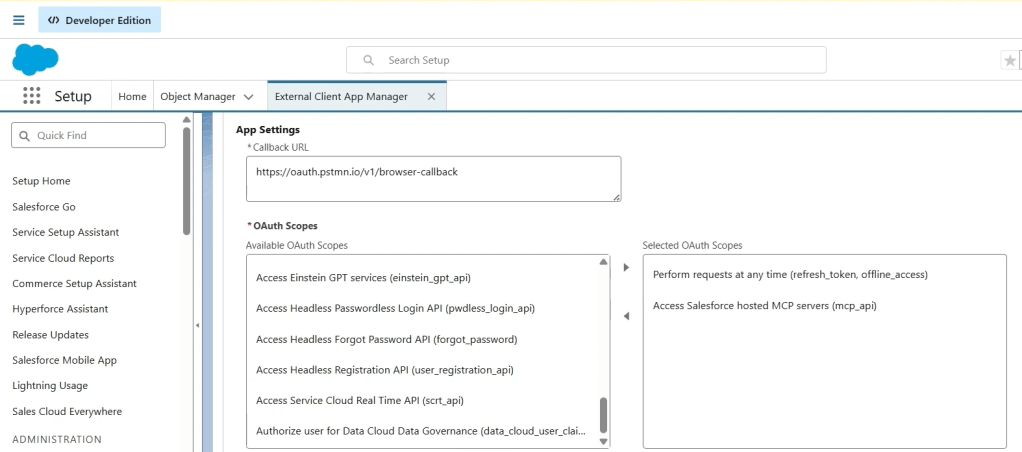
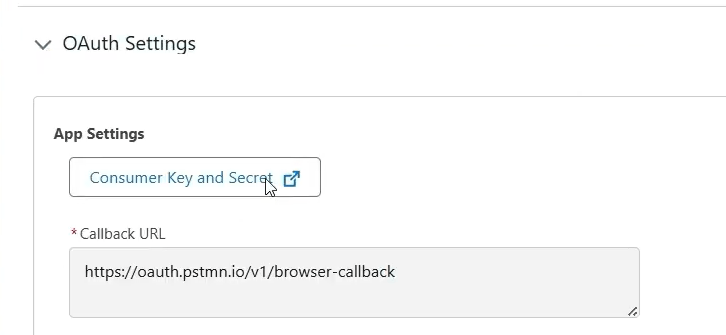
Enter Callback URL : https://oauth.pstmn.io/v1/browser-callback & select below OAuth Scopes

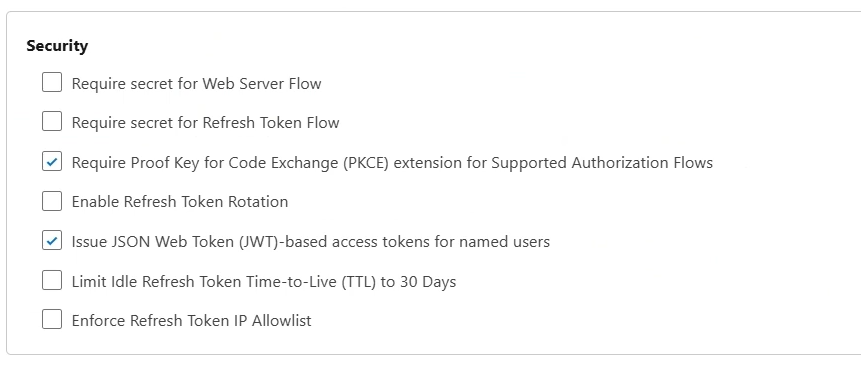
Under Security select the below options :
Click Create
Note: The External Client App can take up to 30 minutes to become available and operational for use with your MCP client. (The delay is similar to registering a new domain with DNS.)
Click Settings, then click Consumer Key and Secret under OAuth Settings to get the consumer key. Store the consumer key for later use.
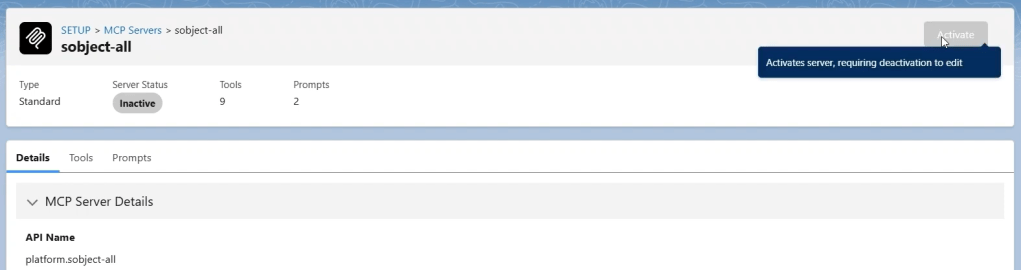
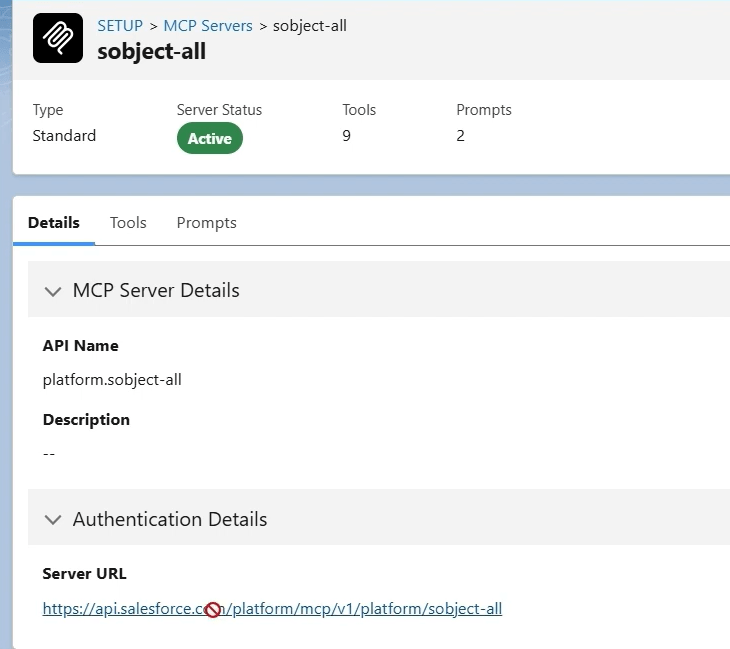
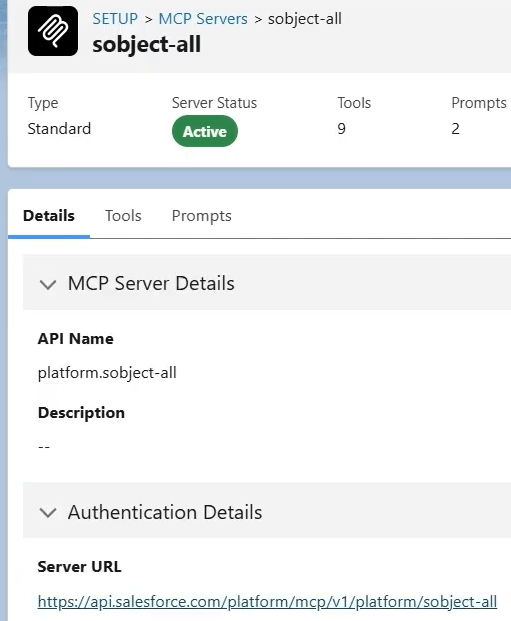
Step 2 : Go to Setup -> MCP Servers and Activate your MCP Server
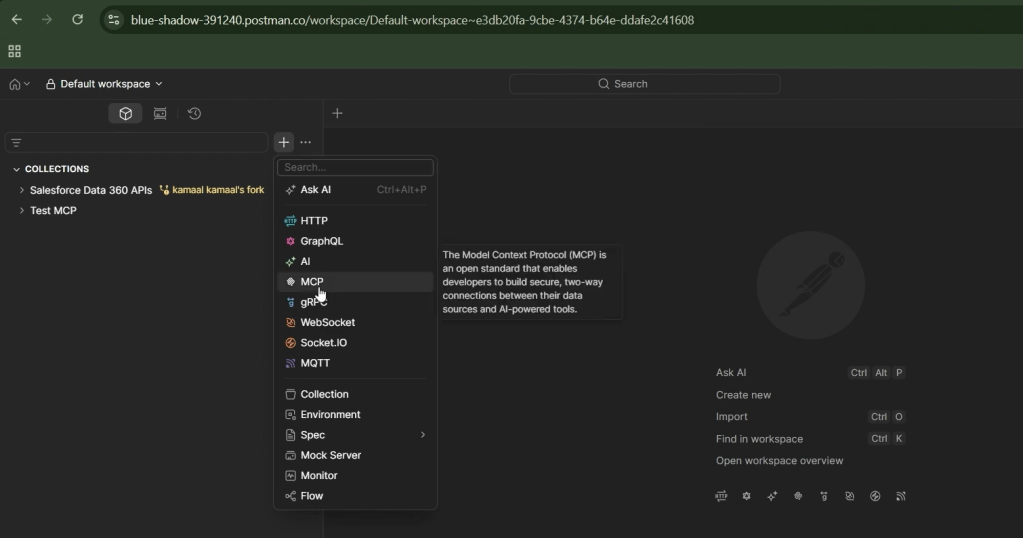
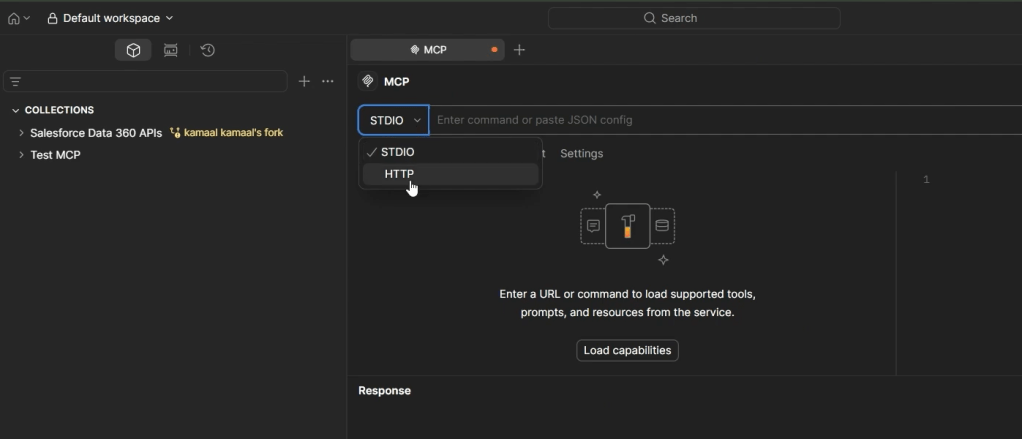
Step 3 : Now in Postman, click on + icon and then MCP
Provide a Name to it like MCP and change STDIO to HTTP
You can copy your MCP Server URL and paste in Postman Request and click Authorization and select OAuth 2.0
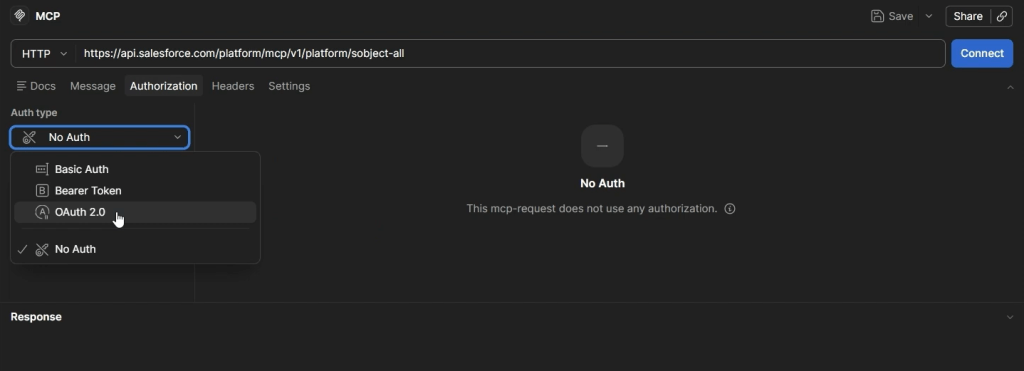
- Navigate to the Authorization tab.
- Set Auth Type to OAuth 2.0.
- Set Add authorization data to to Request Headers.
- Click Configure New Token in the right-hand pane and enter the following values:
- Token Name: Enter a descriptive name (example:
Postman Sandbox) - Grant Type: Select Authorization Code (With PKCE)
- Callback URL: Leave the callback URL in place, and ensure it matches the callback URL in the External Client App
- Desktop Postman:
https://oauth.pstmn.io/v1/callback - Web browser Postman:
https://oauth.pstmn.io/v1/browser-callback - Check the box for Authorize using browser
- Desktop Postman:
- Auth URL: Enter the authorization URL based on org type:
- Production orgs:
https://login.salesforce.com/services/oauth2/authorize - Sandbox/scratch org:
https://test.salesforce.com/services/oauth2/authorize
- Production orgs:
- Access Token URL: Enter the token URL based on org type:
- Production orgs:
https://login.salesforce.com/services/oauth2/token - Sandbox/scratch org:
https://test.salesforce.com/services/oauth2/token
- Production orgs:
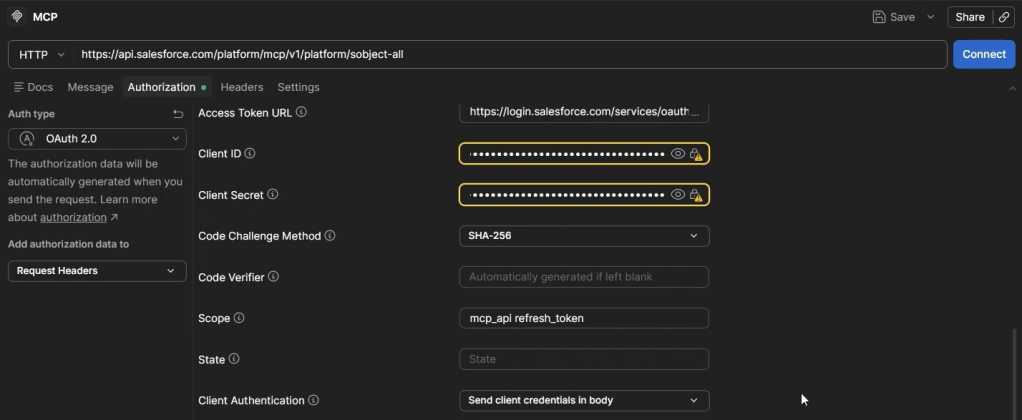
- Client ID: Paste the consumer key that you saved from the external client app
- Client Secret: Leave this blank (PKCE enables you to omit the client secret)
- Code Challenge Method: Select SHA-256
- Code Verifier: Leave blank (automatically generated)
- Scope:
mcp_api refresh_token - State: Leave blank
- Client Authentication: Select Send client credentials in body
- Token Name: Enter a descriptive name (example:
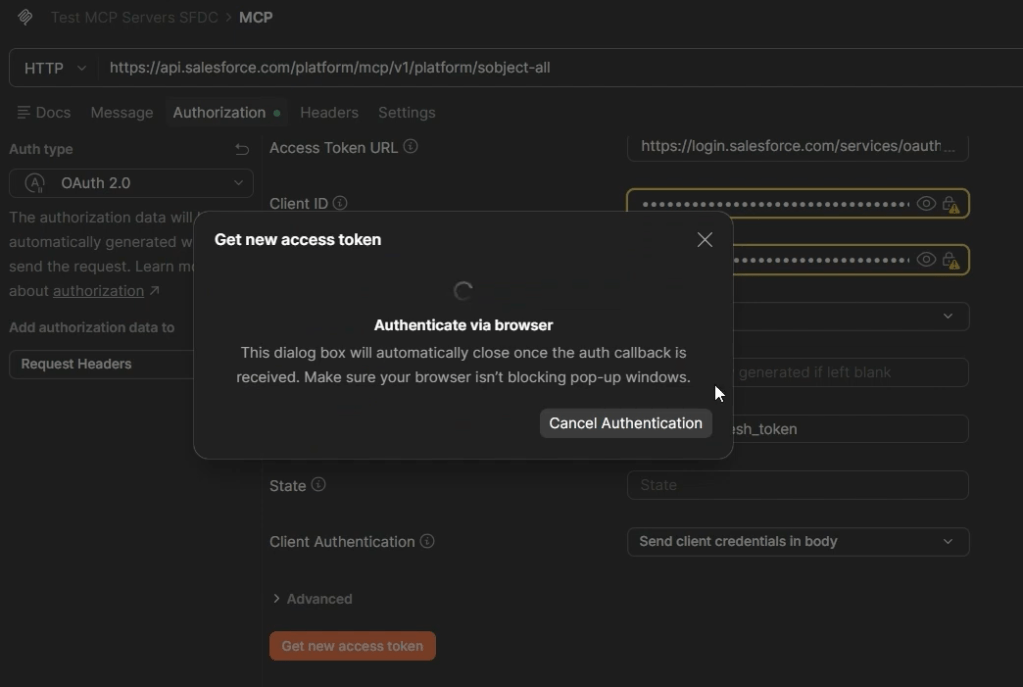
- Click Get New Access Token. A browser window opens for Salesforce authentication.
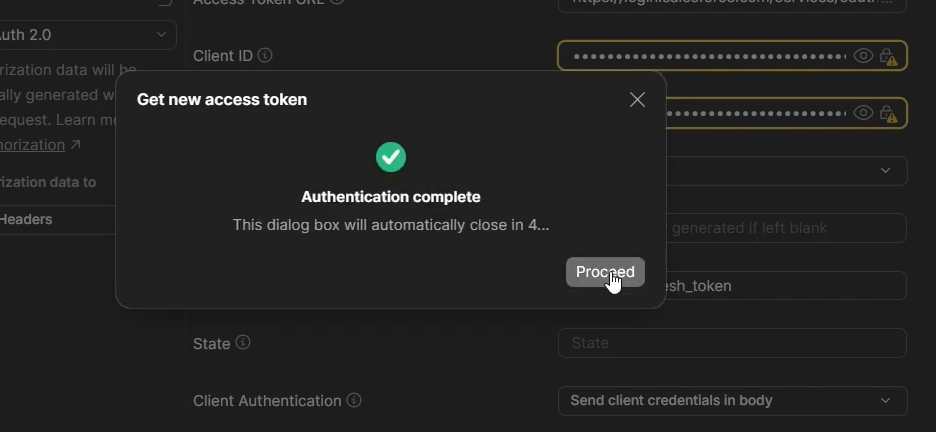
- Log in with your Salesforce credentials if needed, and authorize the application when prompted.Note: You may need to enable pop-up windows in your browser.
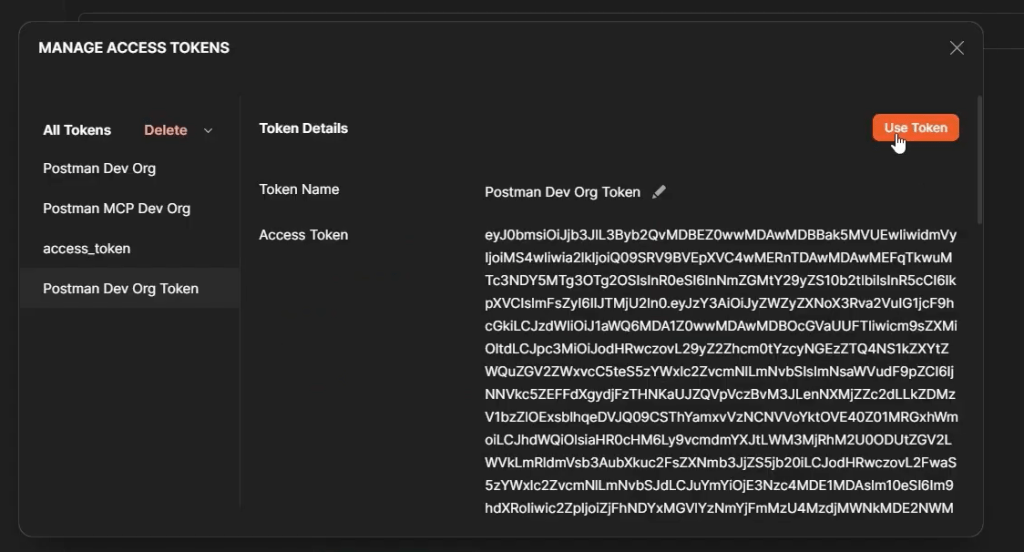
- When you return to Postman, click the Use Token button if presented with the Manage Access Tokens modal window so that Postman can capture and use the token.
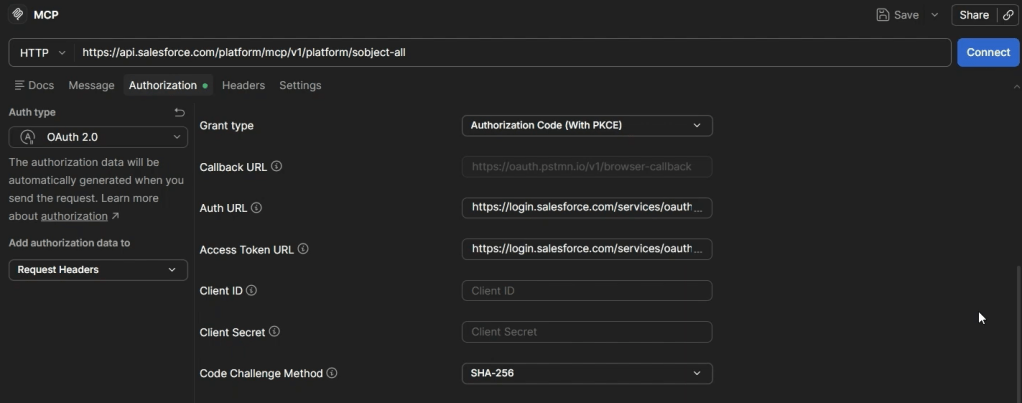
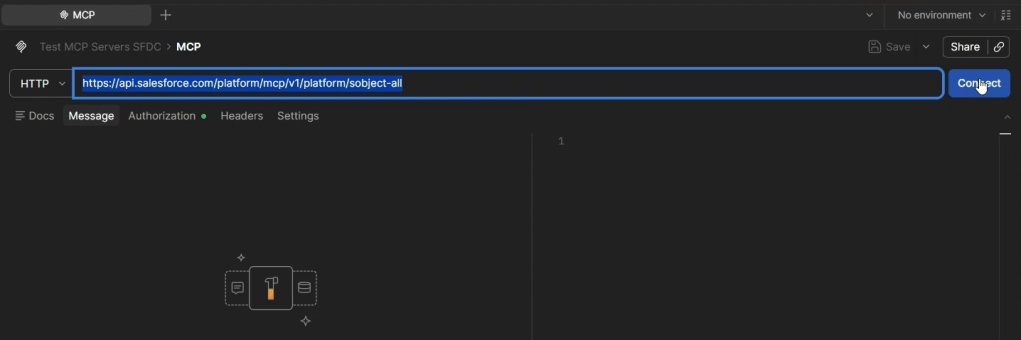
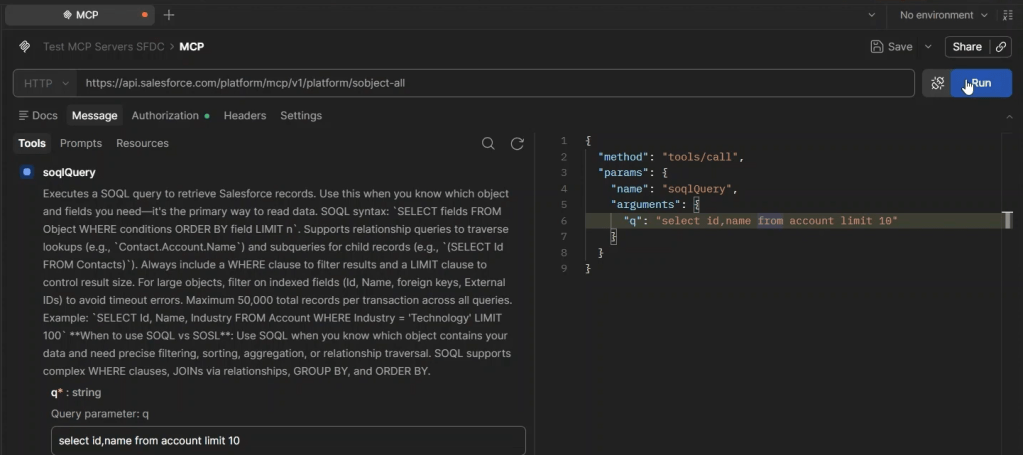
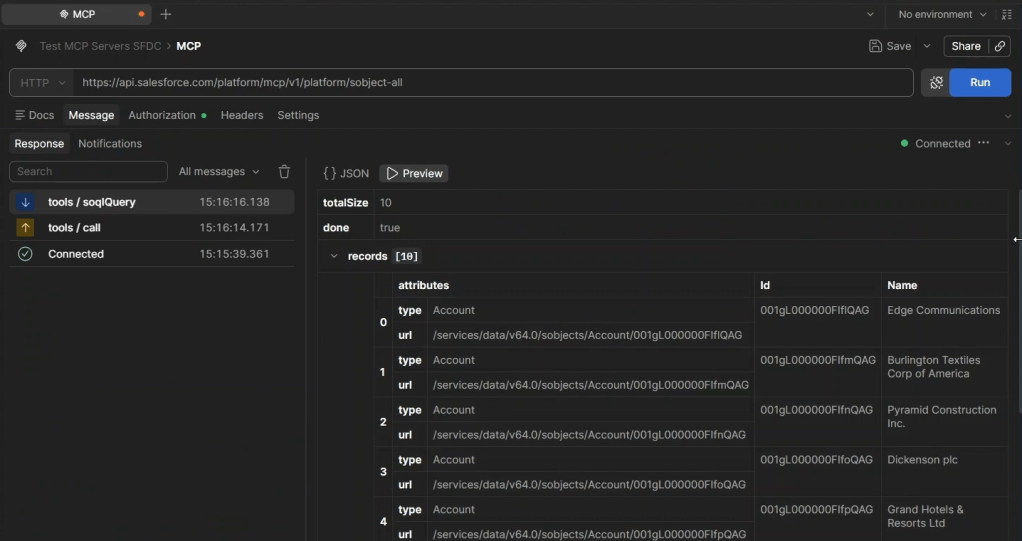
Click Connect and All the MCP Tools will be present for that MCP Server.
Now select the preferred tool and click Run and get the desired result.
Reference : https://developer.salesforce.com/docs/platform/hosted-mcp-servers/guide/postman.html
 SFDCWallah
Leave a comment