Before connecting your MCP Server in ChatGPT, make sure you have created an external client app in your Salesforce org and Salesforce MCP Server is active
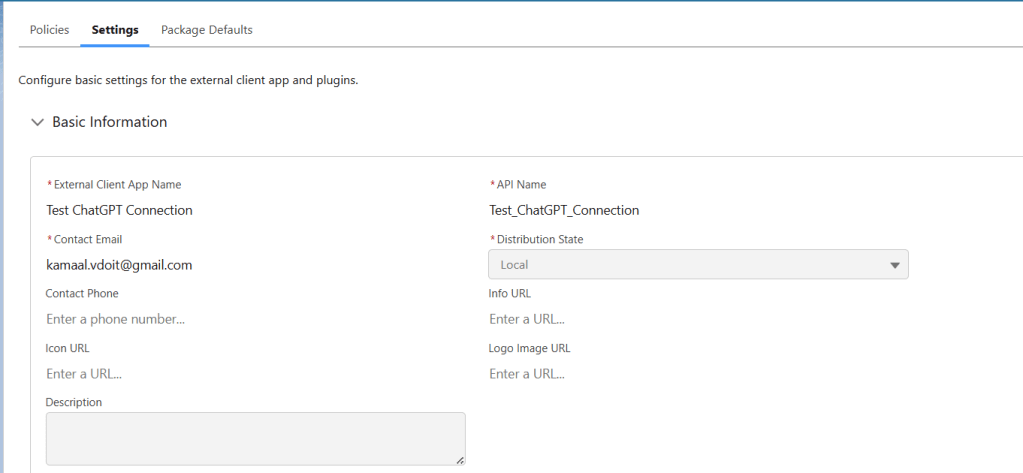
To create External Client App follow the below settings
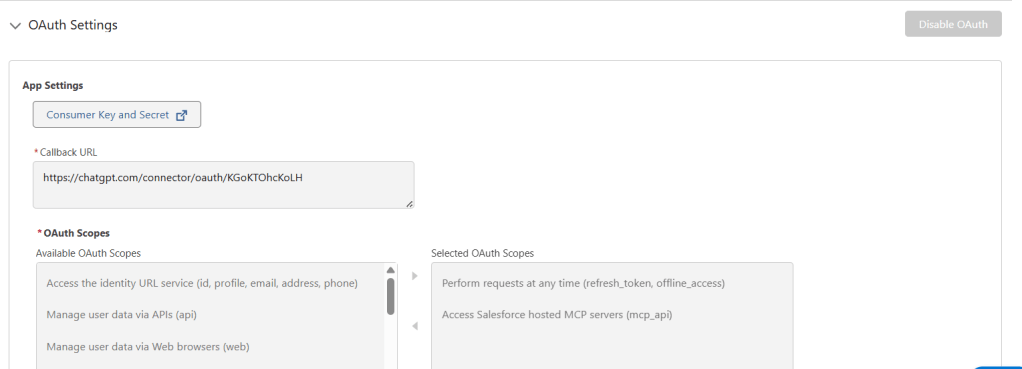
Enable OAuth Settings, Enter Callback URL : https://chatgpt.com/connector/oauth/KGoKTOhcKoLH
and select below scopes
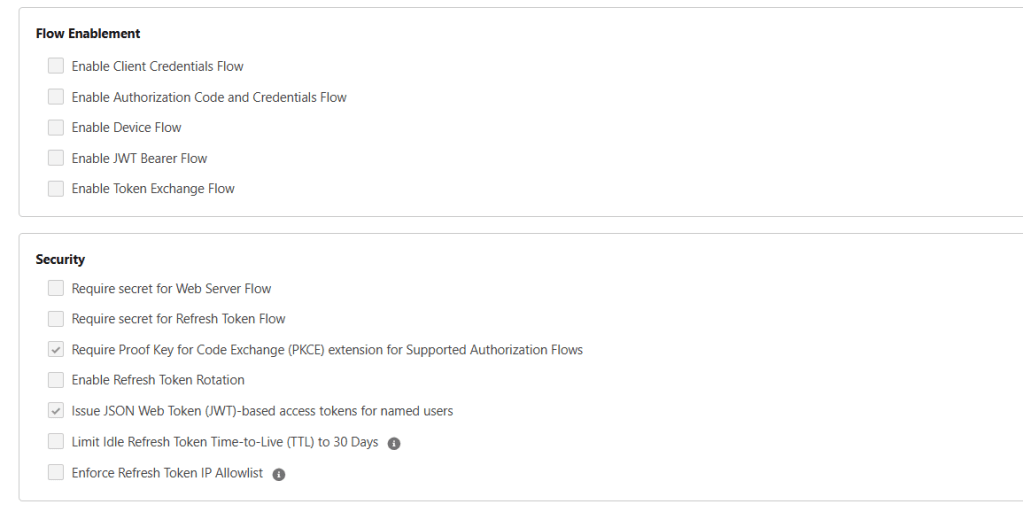
Under Security select these only these options
click Create and save the consumer key and secret for future purpose.
Now in ChatGPT, first you need to enable the developer mode.
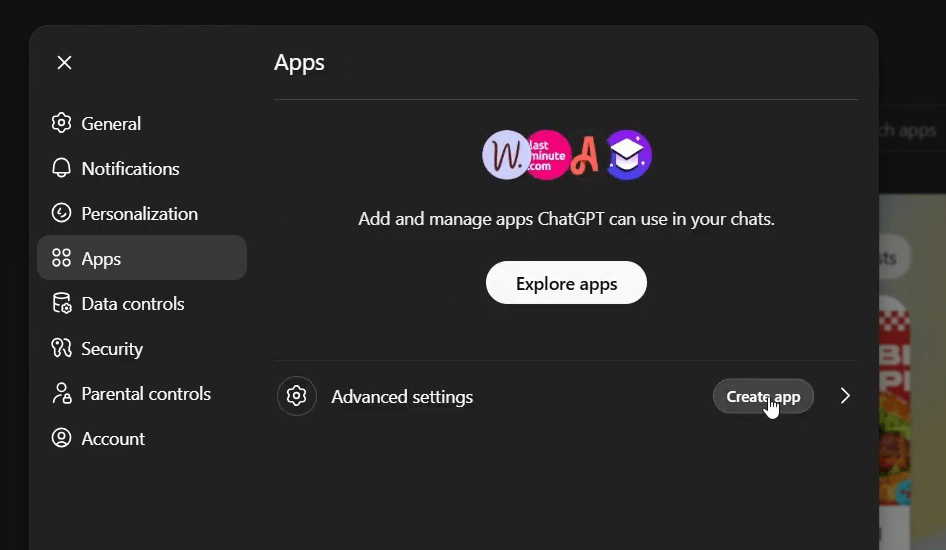
Go to Settings->Account and Enable Developer Mode then you will get option to Create App
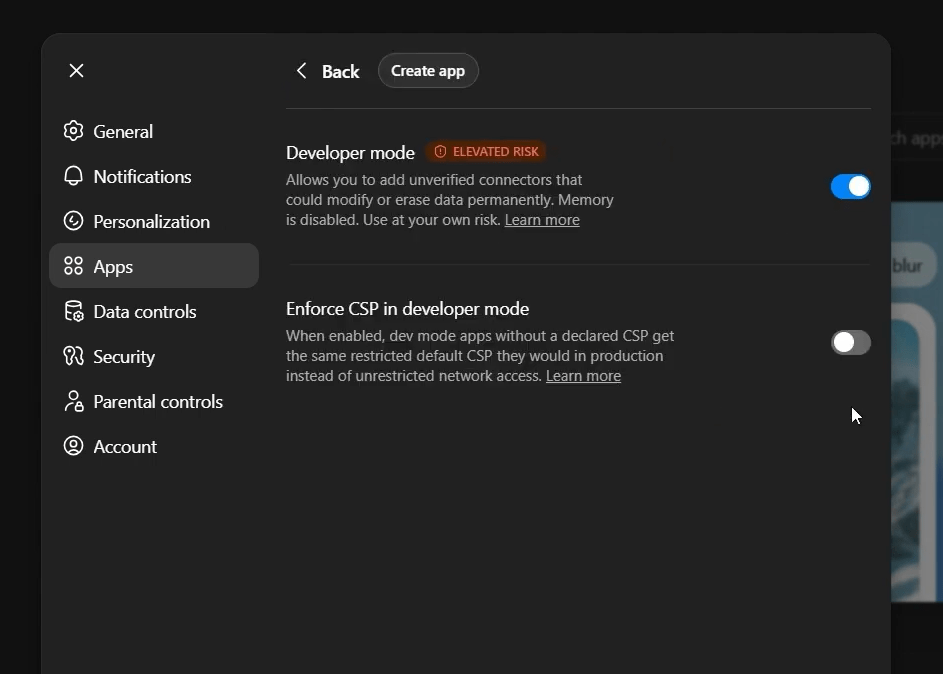
Click on Create App
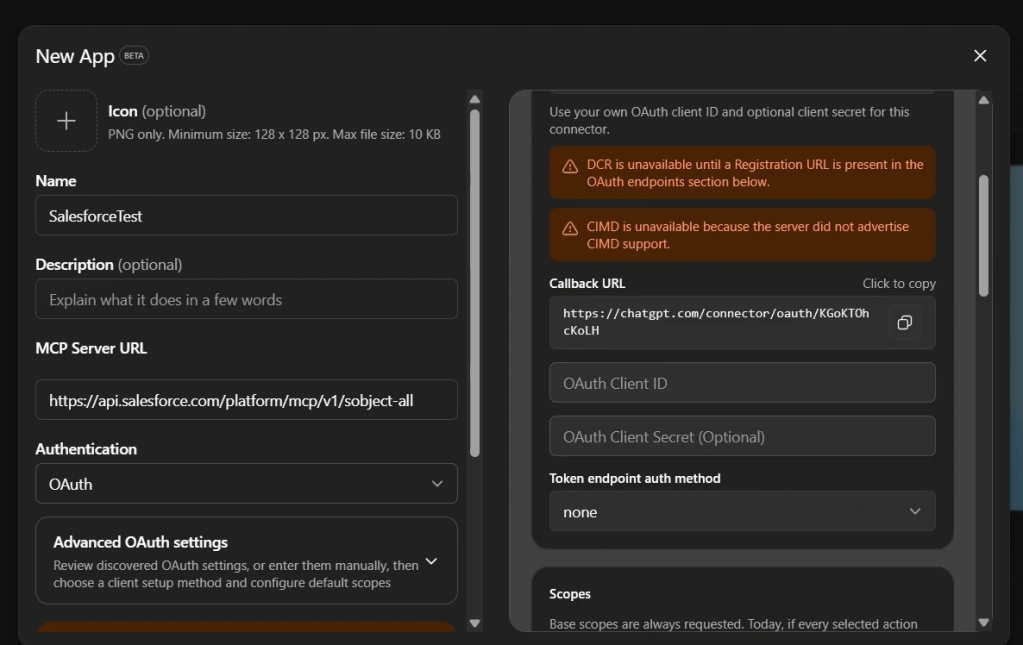
Enter Name, description and your MCP Server URL
Under Authentication, click Advanced settings:
Set Registration Method to User-defined OAuth client
Paste the consumer key that you copied from the external client app in OAuth Client ID.
For Callback URL, go to Advanced settings → Callback URL and copy the URL provided by ChatGPT. Same URL we used when configuring your External Client App.
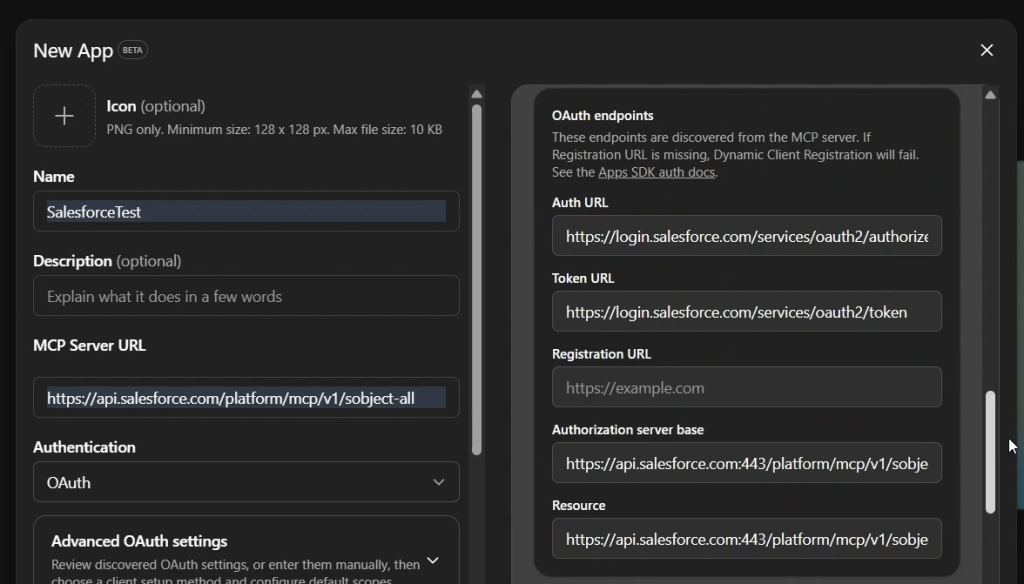
- Auth URL: Enter the authorization URL based on org type:
- Production orgs:
https://login.salesforce.com/services/oauth2/authorize - Sandbox/scratch org:
https://test.salesforce.com/services/oauth2/authorize
- Production orgs:
- Access Token URL: Enter the token URL based on org type:
- Production orgs:
https://login.salesforce.com/services/oauth2/token - Sandbox/scratch org:
https://test.salesforce.com/services/oauth2/token
- Production orgs:
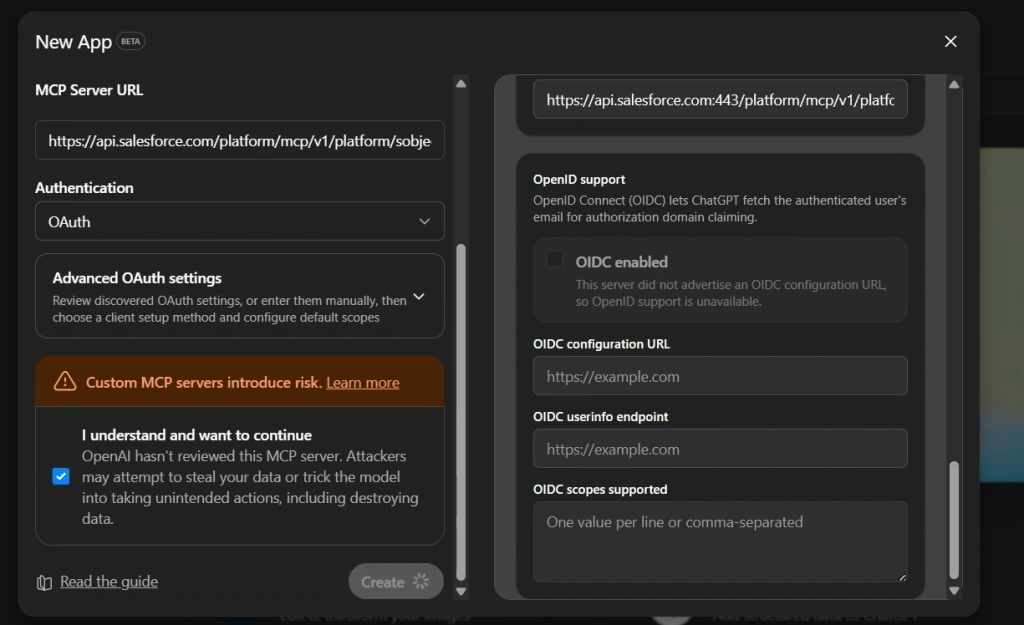
click Create
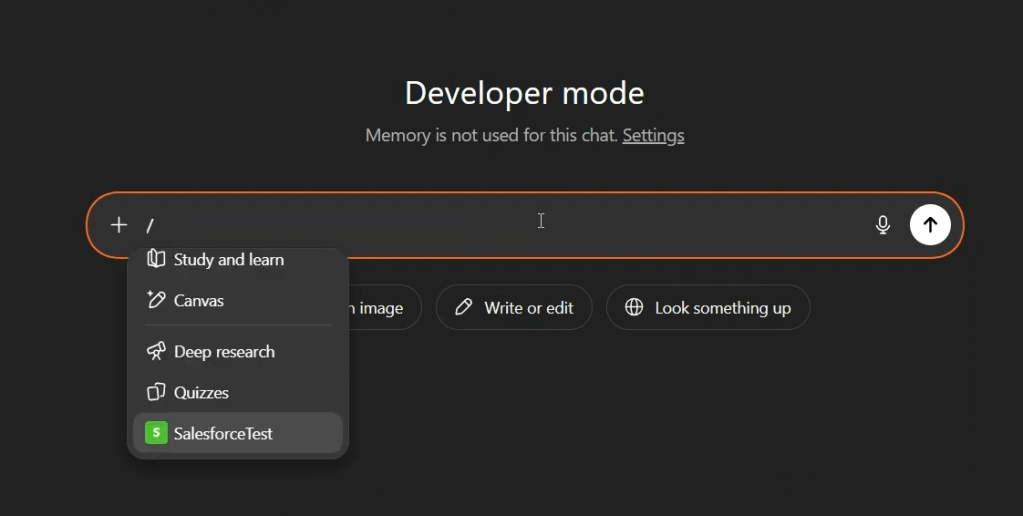
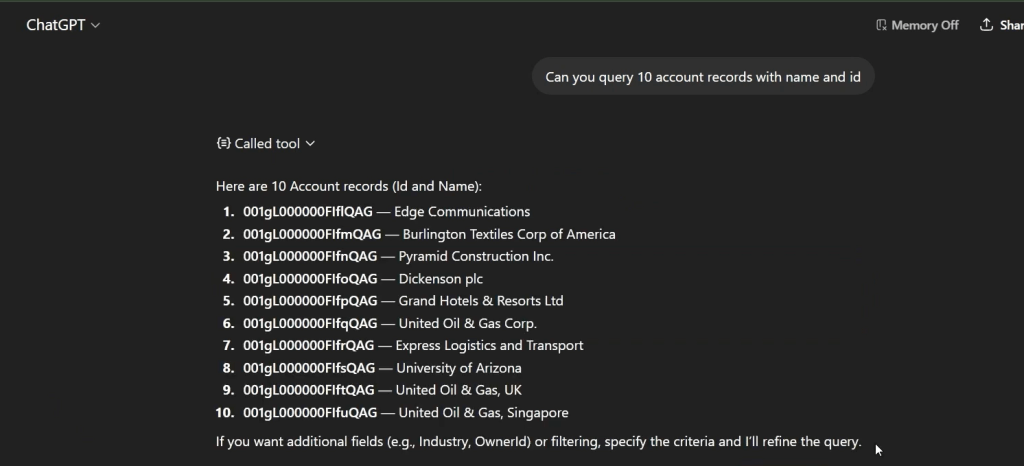
enter / and your recently connected MCP Server
Reference : https://developer.salesforce.com/docs/platform/hosted-mcp-servers/guide/chatgpt.html
 SFDCWallah
Leave a comment