Security & Sharing Model Overview
Salesforce uses a layered approach to security—each layer narrows or expands access depending on business needs.
Salesforce’s security model is designed to protect your data and ensure that users can only access what they’re supposed to.
It works on multiple levels, from organization-wide settings down to individual field-level permissions, giving administrators granular control over who sees and does what in the system.
1. Organization Security
What is it?
Controls who can log in and when, regardless of what data they can see once in Salesforce.
- Examples:
- Restrict logins to trusted office IPs only.
- Allow logins only during standard work hours (e.g., 8 AM–6 PM).
- Real-Life Example:
Your HR team can log in from the corporate network but not from home to minimize data leak risk. - Scenario Question:
Q: How would you prevent users from accessing Salesforce from outside the office?
A: Implement IP range restrictions at the organization level.
2. Object-Level Security
What is it?
Controls access to all records of a given object (e.g., Accounts, Opportunities) by using profiles and permission sets.
- Examples:
- Only Sales users can create Opportunities.
- Support users cannot delete Contacts.
- Real-Life Example:
A Sales Rep’s profile grants “Read” and “Edit” access to Leads and Opportunities, while a Support Rep’s profile only lets them view those records. - Scenario Question:
Q: A new marketing user needs temporary access to the Product object. How would you provide this?
A: Assign a Permission Set with access to the Product object to that user.
3. Field-Level Security
What is it?
Restricts access to specific fields within an object.
- Examples:
- “Salary” field on Employee object visible to HR, hidden from others.
- Marketing users cannot edit the “Discount Amount” field on Opportunities.
- Real-Life Example:
The “Social Security Number” field is only visible to users with HR profiles; others can’t see or update this field. - Scenario Question:
Q: A user can access the Contact object but can’t see the “Personal Email” field. What’s the likely cause?
A: Field-level security settings for the user’s profile or permission set don’t allow access to that field.
4. Organization-Wide Defaults (OWD)
What is it?
Baseline access setting for records within an object for all users.
- Examples:
- Opportunities set to Private: users only see their own records.
- Accounts set to Public Read Only: anyone can view, but only owners/editors can edit.
- Real-Life Example:
Your sales reps shouldn’t see each other’s deals, so Opportunities OWD is set to Private. Only the owner and their superiors (via role hierarchy) have access. - Scenario Question:
Q: Why use OWD “Private” on Opportunities?
A: To ensure only the owner and selected users by hierarchy or sharing can access opportunity records.
5. Role Hierarchy
What is it?
A structure that allows higher roles to access records owned by subordinates.
- Examples:
- A Regional Sales Manager can see every deal owned by their team.
- VP of Sales has visibility into all sales records under all regional managers.
- Real-Life Example:
In a company, a Sales Director can see opportunities created by all sales reps reporting up through their chain. - Scenario Question:
Q: A manager needs to oversee all their team’s pipeline. What feature enables this?
A: Role Hierarchy grants upward visibility to managers.
6. Sharing Rules
What is it?
Automated rules that grant further access based on record ownership or field criteria.
- Types:
- Owner-based: Share all records owned by Sales East with the Marketing Group.
- Criteria-based: Share all Opportunities over $50,000 with the Senior Management group.
- Real-Life Example:
You have “Cases” set to Private OWD. A sharing rule shares all “Priority: High” cases with the Support Managers group. - Scenario Question:
Q: How do you allow all Marketing reps to see Accounts owned by the Sales team?
A: Create an owner-based sharing rule that shares Sales-owned Accounts with the Marketing role or group.
7. Manual Sharing
What is it?
Record owners or users with certain permissions can manually share individual records with other users or groups for ad-hoc needs.
- Examples:
- Real-Life Example:
A recruiter is on vacation; she shares a candidate’s record with another recruiter manually for temporary access. - Scenario Question:
Q: When might you use manual sharing over sharing rules?
A: For one-off situations, like covering absences or special projects that aren’t addressed by existing rules.
8. Apex Managed Sharing
What is it?
Custom, programmatic record sharing by code when complex or dynamic sharing requirements can’t be handled by standard features.
- Examples:
- Real-Life Example:
A “Project” record should be visible to a project team only if they are listed in a related “Team Members” object, managed dynamically using Apex triggers. - Scenario Question:
Q: When do you use Apex managed sharing?
A: When declarative sharing doesn’t fit—for example, sharing based on complex business logic or integration with an external system.
9. Public Groups
What is it?
Collections of users, roles, or other groups to be used in sharing rules or manual sharing.
- Examples:
- “Support Team” public group includes all support reps and managers.
- Share all corporate event contacts with “Event Team” group.
- Real-Life Example:
A Public Group called “Executives” includes CEO, CFO, and Legal, so high-value opportunities can be manually shared with this group at once. - Scenario Question:
Q: Why use Public Groups in sharing rules?
A: To simplify sharing configurations by referencing groups instead of individual users or roles.

Scenario Based Questions with Answers:
1. A user says they cannot see a sensitive field on the Account object. Where would you check and what would you update?
- Steps to Resolve:
- Review the user’s profile and permission sets for Field-Level Security on the Account object. Ensure the sensitive field is set to “Visible”.
- Check if the field is also included in the page layout assigned to the user.
- Confirm that no permission set or muting permission set is overriding access to that field.
- If the field should not be hidden for that user, adjust permissions as needed to grant visibility.
2. You want all accounts owned by the “Sales West” team to be visible to the “Marketing” team. What kind of sharing would you use?
- Best Approach:
- Use an Owner-Based Sharing Rule.
- How:
- Create a sharing rule that shares Accounts where the owner is in the “Sales West” role (or public group) with the “Marketing” role or public group.
- Set the access level (Read Only or Read/Write) as required.
3. A manager needs access to all the records owned by their subordinates, but a peer manager shouldn’t see their records. How do you set this up?
- Solution:
- Set the Role Hierarchy so that the manager’s role is above their team members’ roles.
- Ensure the OWD for the object is not set to “Public Read/Write”—prefer “Private” or “Public Read Only” so only upward access through the hierarchy applies.
- This setup grants managers access to records owned by their direct and indirect reports, but not to records owned by peer teams.
4. You’ve set Opportunity OWD to Private, but management needs reports showing all opportunities in the company. How will you solve this?
- Steps:
- Assign the management users a profile or permission set that includes the “View All” or “View All Data” permission for Opportunities.
- Alternatively, position management roles above all sales users in the Role Hierarchy to grant them access to all subordinate Opportunity records.
- Now management will have visibility for consolidated reporting.
5. A user on a temporary project needs edit access to specific records owned by another team member. What’s the quickest way to grant this?
- Quickest Solution:
- Use Manual Sharing.
- How:
- The record owner (or user with “Full Access”) opens the record, clicks “Sharing”, and shares the record with the specific user, granting edit rights.
6. Your company merges two divisions, and now users from both should see each other’s cases. Which feature will you use?
- Approach:
- Create a Criteria-Based Sharing Rule or Owner-Based Sharing Rule for the Case object.
- How:
- Create public groups for both divisions if not already present.
- Set up a sharing rule to share Cases owned by users in one group/role with members of the other group/role, and vice versa.
🎯 Scenario-Based Questions: Which Sharing Option to Use?
Here are some real-life scenarios . Try to guess which feature fits best.
✅ Q1: We want all users in the “East Region” role to get read-only access to accounts owned by users in the “West Region” role.
Answer : ❓
👉 Sharing Rules
Because it’s ownership-based and applies to many users.
✅ Q2: We have a custom field Customer_Success_Manager__c on Account. When it’s filled, we want that user to get automatic access to the account.
Answer : ❓
👉 Apex Managed Sharing
Because it depends on a custom field and requires automation.
✅ Q3: Our sales team is organized into US, EMEA, and APAC. Each rep should only see accounts in their region. Managers should see all in their region.
Answer : ❓
👉 Territory Management
For structured regional access with hierarchy.
✅ Q4: A Solution Engineer needs temporary access to one opportunity to help close a deal.
Answer : ❓
👉 Opportunity Team
Because it’s record-specific and collaborative.
✅ Q5: We want to prevent users from creating duplicate accounts based on name and email.
Answer : ❓
👉 Duplicate Rule + Matching Rule
To stop duplicates during record creation.
✅ Q6: Our Customer Success team should be able to view all accounts where they’re added as the CSM, even if they don’t own them.
Answer : ❓
👉 Apex Managed Sharing
Because it’s dynamic and not supported by standard sharing rules.
✅ Q7: We want managers to see all accounts under their team without changing OWD settings.
Answer : ❓
👉 Territory Management
Or Role Hierarchy , depending on complexity.
✅ Q8: We want to give a few users access to a single account for a special project.
Answer : ❓
👉 Manual Sharing
Or Account Team
✅ Q9: We want all users in the “Marketing Team” group to see all opportunities related to active campaigns.
Answer : ❓
👉 Sharing Rules
If you can define criteria like “Campaign Status = Active”.
✅ Q10: A customer is being entered twice because the name is slightly different. How do we catch this before saving?
Answer : ❓
👉 Duplicate Rule + Matching Rule
With fuzzy matching on name, phone, email.
📌 Summary Table: When to Use What
| Feature | Use When… |
| Sharing Rules | You want to share records based on ownership or criteria for many users. |
| Apex Managed Sharing | You need complex, dynamic sharing logic not supported by UI tools. |
| Territory Management | You need scalable, hierarchical access control across large teams. |
| Teams (Account, Opportunity, etc.) | You need to collaborate on a specific record with non-owners. |
| Duplicate Rules + Matching Rules | You want to avoid duplicate records during data entry. |
Duplicate Rules and Matching Rules in Salesforce work together to help prevent duplicate records, but they serve different purposes .
Let’s break it down clearly with a simple analogy and examples:
🔍 What’s the Difference Between Duplicate Rules and Matching Rules?
| Feature | Purpose | When It Runs | Controls What Happens |
| Matching Rule | Finds potential duplicates based on field values | Before saving a record | Which records are considered duplicates |
| Duplicate Rule | Decides what happens when duplicates are found | After matching | Block save,warn user, orallow save |
🧠 Think of It Like This
Imagine you’re at an airport security checkpoint:
- The Matching Rule is like the scanner — it checks if someone matches a known profile.
- The Duplicate Rule is like the security officer — it decides whether to stop them, warn them, or let them through.
✅ Matching Rule – “What Makes a Duplicate?”
A Matching Rule defines which fields must match for two records to be considered duplicates.
Example:
You create a Matching Rule for Accounts that says:
Match if Name OR (Phone AND Email ) match.
This tells Salesforce how to identify possible duplicates.
How It Works:
- Salesforce compares new or edited records against existing ones.
- If the criteria match, Salesforce considers them potential duplicates .
✅ Duplicate Rule – “What Should Happen When Duplicates Are Found?”
A Duplicate Rule decides what action to take when a duplicate is found during record creation or edit.
Example Actions:
- Allow : Let the user save anyway (just show a warning).
- Warn : Show a warning message but let the user choose to proceed.
- Block : Stop the user from saving the record until the duplication is resolved.
Example:
You set up a Duplicate Rule on Account:
If a duplicate is found using the Matching Rule, warn the user but allow them to save if they want.
🔐 Salesforce Security Model Overview
Salesforce uses a layered security model that includes:
- Organization-Level Security
- User Authentication
- Network Access Settings
- Profile Permissions
- Role Hierarchy
- Sharing Rules
- Field-Level Security
- Record-Level Security (OWD)
- Permission Sets
- Session Settings
- Data Security Tools
1. 🏢 Organization-Level Security
This controls high-level access for everyone in your org.
Example:
- You can restrict login hours or IP ranges.
- Prevent users from logging in unless they’re on company networks.
Settings include:
- Login hours (Business Hours in Setup)
- Trusted IP ranges (Network Access in Setup)
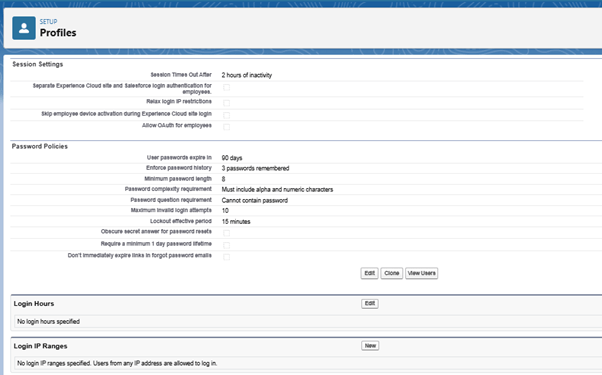
- Password policies (Password policies in Setup) Like we have
- User passwords expire in by default 90 days or we can set Never expires
- Enforce password history (The default is 3 passwords remembered. You cannot select No passwords remembered unless you select Never expires for the User passwords expire in field.)
- Session timeouts (Session Settings in Setup) :
- We can set session timeout value like 2 hours
- Force logout on session timeout
- Lock sessions to the IP address from which they originated
Session Settings, Login IP Ranges, Login Hours and Password policies are present under profile also.
2. 🔐 User Authentication
Ensures users are who they say they are.
Example:
- Multi-Factor Authentication (MFA): Users must enter a code sent to their phone after entering a password. (Identity Verification in Setup)
enable MFA for all internal users in your org:
- From Setup, in the Quick Find box, enter Identity, and then select Identity Verification.
- Select Require multi-factor authentication (MFA) for all direct UI logins to your Salesforce org.
- Single Sign-On (SSO): Log in once with corporate credentials. (Single Sign On Settings in Setup)
3. 🌐 Network Access Settings
Limits login to specific IP addresses. (Network Access in Setup)
Example:
- Restrict logins only from office IPs (e.g., 192.168.1.0/24).
4. 📋 Profile Permissions
Profiles define what a user can do in Salesforce (object access, app access, system permissions).
Example:
- A “Sales Rep” profile might allow read/create on Accounts but not delete.
- An “Admin” profile has full access.
Key things Profiles control:
- Object permissions (CRUD – Create, Read, Update, Delete)
- Field permissions (but not granular field-level access — see #7)
- App access
- System permissions (like “Run Reports”)
- Page Layout Assignments
- Record Type Settings
- Administrative permissions like Manage Leads, Apex Rest Services, Manage Users and all
- Tab Permissions
- Session Settings, Login IP Ranges, Login Hours and Password policies are present under profile also.
- Enabled Apex Classes, VF Pages, Named Credentials, Custom Metadata and Custom Settings or any Custom Permission
5. 📊 Role Hierarchy
Determines data visibility based on hierarchy.
Example:
- A Regional Manager sits above Team Leads in the role hierarchy.
- The Regional Manager automatically sees all records owned by their subordinates.
Note: This only applies if OWD (see #8) is set to Public Read Only or Private.
6. 🔗 Sharing Rules
Automatically share records with certain groups of users when criteria are met.
Example:
- Share all accounts in the “APAC” region with the APAC Sales team.
- Share cases older than 3 days with Support Managers.
7. 🔒 Field-Level Security
Controls whether users can view or edit specific fields.
Example:
- Hide the “Salary” field from non-HR users.
- Allow Sales Reps to view but not edit “Credit Score”.
You can configure this via Profiles or Permission Sets .
8. 🗼 Organization-Wide Defaults (OWD)
Defines the baseline level of access for all users to each object.
Options:
- Public Read/Write
- Public Read Only
- Private
Example:
- Set Account OWD to Private : Only record owners and those above them in the role hierarchy can see the records.
- Set Cases OWD to Public Read Only : Everyone can see all cases, but only owners can edit.
9. 🎯 Permission Sets & Permission Set Groups
Used to add extra permissions without changing a user’s profile.
Example:
- A Sales Rep needs temporary access to edit Opportunities → assign a permission set granting Edit access.
- Give a few users access to a new custom object without changing their profile.
- 🧩 Permission Set Group
- A Permission Set Group, introduced in Winter ’21 , is a collection of permission sets . It allows you to bundle multiple permission sets together under one name and assign them collectively to users.
- 📌 A Permission Set Group is like a package that contains several permission sets — it simplifies management for complex roles.
- ✅ Key Differences Between Permission Set and Permission Set Group
| Feature | Permission Set | Permission Set Group |
| Contains | Individual permissions | Multiple permission sets |
| Reusability | Can be reused across users | Combines reusable permission sets |
| Assignment | Assigned directly to a user | Assigned directly to a user |
| Conflict Handling | No conflict (single set) | Conflicts resolved by Salesforce (last assigned wins) |
| Use Case | For simple or focused access needs | For managing complex roles with many permissions |
- 🚀 Real-Life Example: Managing Permissions in a Financial Services Company
- Let’s say you work at a financial services company using Salesforce to manage clients, opportunities, and compliance data.
- 🧑💼 User Role: Compliance Officer
- This role requires:
- Read-only access to Accounts and Contacts
- Full access to a custom object called Compliance_Review__c
- Access to the Compliance app
- Ability to run reports
- A custom permission: Can_View_Sensitive_Data
- Instead of creating one massive permission set , you could create smaller, reusable permission sets :
- ReadOnly_Accounts
- FullAccess_ComplianceReview
- Compliance_App_Access
- Report_Runners
- CustomPerm_CanViewSensitiveData
- Then, you create a Permission Set Group called Compliance_Officer_Role that includes all these permission sets.
- Why this is better:
- Each permission set can be reused for other roles (e.g., ReadOnly_Accounts might be used for interns too).
- You can update individual permission sets without affecting others.
- It’s easier to manage and understand than a huge single permission set.
- 🧠 Best Practices When Using Permission Set Groups
- Use descriptive names so admins know what each group does.
- Group related permissions logically (by job function, department, etc.).
- Avoid overlapping groups to prevent confusion and conflicts.
- Monitor effective permissions using the “Effective Permissions” feature in Setup.
🧪 Bonus Tip: How to Check Effective Permissions
- Go to:
- Setup > Permission Set Groups > [Select a group] > View Effective Permissions
- Salesforce will show the combined permissions a user gets when the group is applied.
- Summary
| Concept | Description |
| Permission Set | A granular collection of permissions |
| Permission Set Group | A collection of permission sets for managing complex roles |
- Use Permission Sets for small, focused access needs.
Use Permission Set Groups when users need a combination of permissions from multiple areas of your org.
10. ⏱️ Session Settings
Control session behavior like timeout and security requirements.
Example:
- Force logout after 30 minutes of inactivity.
- Require MFA every time someone logs in.
11. 🛡️ Data Security Tools
Salesforce offers tools to help secure and audit data:
| Tool | Purpose |
| Event Monitoring | Track login attempts, report exports, etc. |
| Field Audit Trail | See who changed specific fields and when |
| Shield Platform Encryption | Encrypt sensitive data at rest |
| Data Loss Prevention (DLP) | Block sharing of sensitive info (e.g., credit card numbers) |
| Identity Verification Questions | Add another layer during login |
🧩 Putting It All Together – Real-Life Scenario
Let’s say you work at a company called CloudTech Inc. , and you’re the Salesforce Admin.
Goal:
- Sales Reps should see only their own leads.
- Sales Managers should see all leads in their region.
- HR should be able to see salary info; others shouldn’t.
- Marketing team can view reports but not edit data.
How You’d Do It:
| Step | Action |
| 1. OWD | Set Lead toPrivate |
| 2. Role Hierarchy | Create roles: Sales Rep → Sales Manager → Director |
| 3. Sharing Rules | Share leads where Region = “West” with West Sales Managers |
| 4. Profiles | Assign Sales Rep profile (limited access), Marketing profile (read-only) |
| 5. Field-Level Security | On Salary field: hide from all except HR profile |
| 6. Permission Sets | Grant some Sales Reps extra access temporarily |
| 7. MFA | Enforce Multi-Factor Authentication for all users |
| 8. Session Settings | Timeout after 1 hour of inactivity |
✅ Summary Table of Salesforce Security Features
| Feature | Controls |
| Profiles | What users can do (CRUD, permissions, apps) |
| Permission Sets | Additional access without changing profiles |
| OWD | Baseline access to objects |
| Role Hierarchy | Who sees what data (based on hierarchy) |
| Sharing Rules | Automatically share data under conditions |
| Field-Level Security | Who can see/edit specific fields |
| Login Hours/IP Ranges | Who can log in and when/where |
| Session Settings | Control session timeouts, MFA, etc. |
| Shield Encryption | Protect sensitive data |
| Event Monitoring | Audit user activity |
📚 Tips for Managing Salesforce Security
- Always start with restrictive defaults (Private OWD).
- Use profiles for base access , permission sets for exceptions.
- Test sharing rules carefully before deployment.
- Regularly review login history and user permissions .
- Enable MFA for all users.
- Keep role hierarchy aligned with real-world reporting structure.
If you’d like, I can also create a diagram or flowchart explaining how these layers connect, or give you a checklist to audit your org’s security settings.
Would you like that?
yes
Great! I’ll provide you with:
- A flowchart/diagram explanation of how Salesforce security layers work together.
- A checklist to audit your Salesforce org’s security settings.
Let’s start with the flowchart explanation , and then we’ll move on to the audit checklist .
🧭 1. Salesforce Security Model – Flowchart Explanation
Here’s a simplified flow of how Salesforce determines what a user can see or do:
User Logs In
↓
Authentication (MFA, SSO, Password Policy)
↓
IP Restrictions & Login Hours
↓
Assigned Profile + Permission Sets
↓
Object Permissions (CRUD access)
↓
Field-Level Security (Can they see/edit specific fields?)
↓
Organization-Wide Defaults (OWD) for each object
↓
Role Hierarchy (Does their role give them access?)
↓
Sharing Rules (Are there any automatic sharing rules that apply?)
↓
Manual Sharing (Has someone manually shared a record?)
↓
Final Access: What the user sees and can do
🔍 Example Walkthrough:
A Sales Rep logs in → is authenticated → allowed from office IP → has “Sales Rep” profile → can read Accounts but not delete → cannot see Salary field → OWD for Account is Private → only sees their own accounts unless shared via sharing rule or role hierarchy.
✅ 2. Salesforce Security Audit Checklist
Use this checklist periodically to ensure your Salesforce org remains secure and compliant.
📌 Organization-Level Settings
- Enforced strong password policy
- Set login hours for users (if needed)
- Defined trusted IP ranges
- Enabled session timeout (e.g., after 60 minutes)
🔐 Authentication & Session Settings
- Multi-Factor Authentication (MFA) enforced for all users
- Single Sign-On (SSO) configured (if applicable)
- Session settings restrict concurrent logins
- Identity verification questions enabled (optional)
🧑💼 User Management
- All inactive users are deactivated
- Users assigned appropriate profiles
- Permission sets reviewed and up-to-date
- Regular review of user roles and hierarchy
🛠️ Profiles & Permissions
- Profiles follow least privilege principle
- Object permissions (CRUD) match job requirements
- Field-level security reviewed regularly
- System permissions (like API access) restricted
📁 Data Access Control
- OWD set to most restrictive by default (Private)
- Role hierarchy reflects company structure
- Sharing rules reviewed and documented
- Manual sharing used sparingly and audited
📊 Monitoring & Compliance
- Event Monitoring enabled and logs reviewed
- Login history checked for suspicious activity
- Shield Platform Encryption enabled for sensitive data
- Field Audit Trail enabled for critical fields
- Data Loss Prevention (DLP) policies applied if needed
🧪 Testing & Change Management
- Security changes tested in sandbox first
- Regular penetration testing conducted
- Third-party apps reviewed for security compliance
- Custom code follows security best practices (no SOQL injection, etc.)
Layer 3: Record-level security
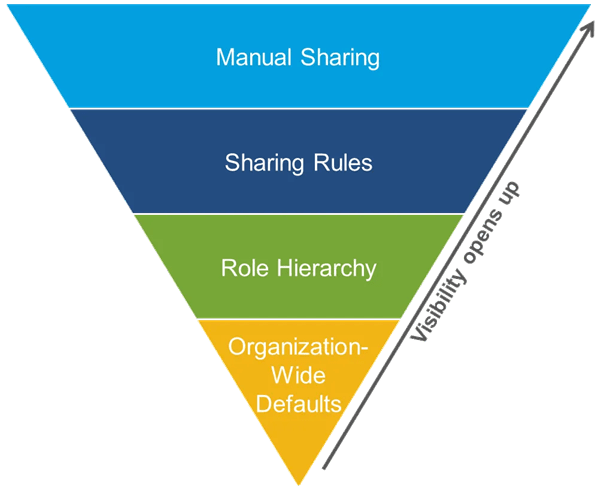
Salesforce provides five ways to share records with others and access others’ records.
In Salesforce, records have a field called “OwnerId” that points to a real user. Owners of records are usually people who created the record and have full CRUD access to it.
Note: Ownership can also be granted to groups of users, for instance, queues.
Types of record-level security (also known as record sharing rules)
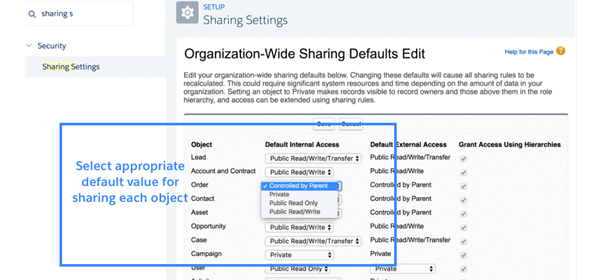
1. Record-level-security: organization-wide sharing defaults
Organization-wide defaults (OWD) control the default behaviour of how every record of a given object (for example, Accounts) is accessed by users who do not own the record.
For example:
- If OWD for Accounts is Private, it means Maria can only see records she is a owner of.
- If OWD for Accounts is Public Read Only, it means anyone can read (but not update or delete) the record.
- If OWD for Accounts is Public Read/Write, it means anyone can read and update (but not delete) the record.
We can set OWD for objects under Sharing Settings in Setup
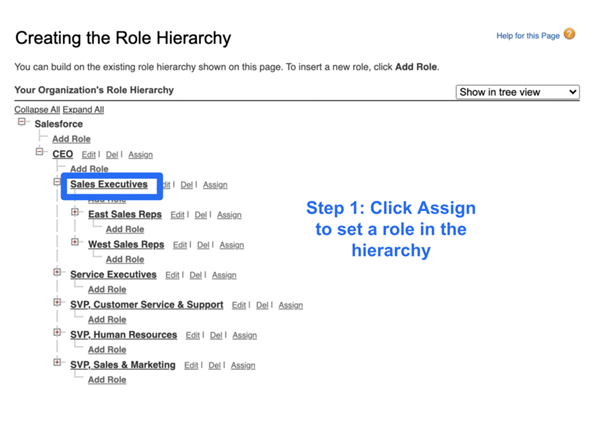
2 Record-level-security: role hierarchies
An admin must first add the user to a role and grant access.
3. Record-level-security: sharing rules
- Hierarchy-based sharing only works for sharing upward and in a vertical direction.
- What if we want to share laterally?
- For example, what if we want to share records that Maria owns with her peers in the service executive teams?
- This is where sharing rules come in.
- Sharing rules provides a way to share records laterally and in an ad-hoc fashion via public groups. Let’s investigate the details.
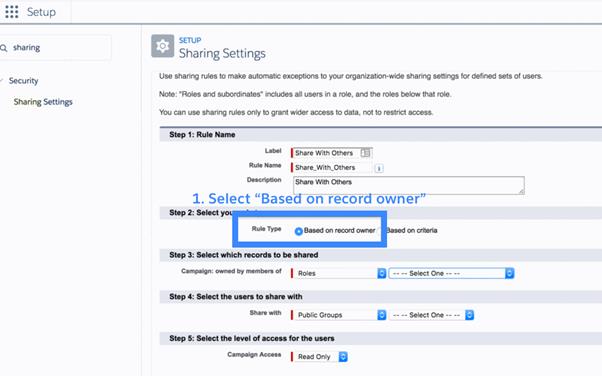
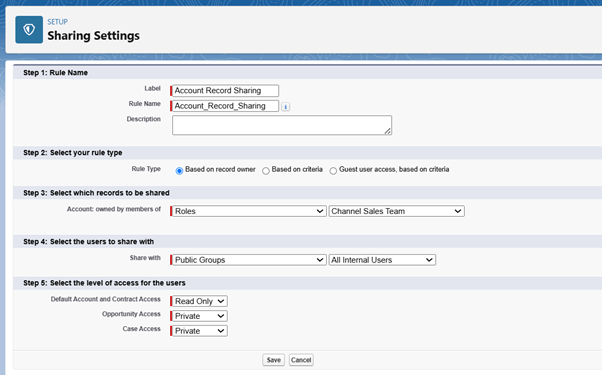
3.1 Ownership-based sharing rules
Ownership-based sharing rules let admins share records based on role, role-and-subordinate, and public group ownership.
For example, we can share all the records owned by anyone in a sales executive role (including Maria’s) with everyone in a service executive role. Similarly, we can share all the records owned by the sales executives, and their subordinates, with others as well.
Ah, got it — you’re asking whether you need to create separate sharing rules for each object (like Account, Contact, Opportunity, etc.) when you want to share records across different objects.
✅ Short Answer:
Yes, you must create separate sharing rules for each object in Salesforce.
Sharing rules are object-specific , meaning:
- A sharing rule for Account does not affect Contact , Opportunity , or any other object.
- You must define and configure sharing logic per object .
🔍 Why Sharing Rules Are Per Object
Salesforce enforces granular access control , so:
- Each object has its own Organization-Wide Defaults (OWD) .
- Each object can have its own set of sharing rules , manual sharing , and access settings .
- This allows fine-grained control over who sees what on a per-object basis.
🧱 Example Scenario
Let’s say your goal is to give the “Sales Team” role access to certain records owned by the “Support Team”.
You would need:
| Object | Sharing Rule Needed? | Purpose |
| Account | ✅ Yes | Share Accounts owned by Support with Sales |
| Contact | ✅ Yes | Share Contacts linked to those Accounts |
| Opportunity | ✅ Yes | Share Opportunities owned by Support |
| Case | ✅ Yes | Share Cases owned by Support |
Each object needs its own ownership-based or criteria-based sharing rule .
💡 Tips When Managing Sharing Across Multiple Objects
- Be Consistent
If the logic is similar (e.g., “Share all records owned by X with Y”), try to apply it consistently across relevant objects. - Use Public Groups or Roles
Define a shared group like “Sales Team”, and use that same group in sharing rules across multiple objects. - Automate Where Possible
Use Apex Managed Sharing or Flow/Process Builder if your sharing logic gets too complex across many objects. - Consider Record Relationships
For related objects like Contact (linked to Account), sometimes controlling access via the parent Account’s OWD/share settings is sufficient. - Review All Objects Individually
Don’t assume a rule on one object affects another. Always check and configure sharing for each object independently.
📌 Summary
| Question | Answer |
| Do I need to create separate sharing rules for each object? | ✅ Yes, sharing rules areobject-specific. |
| Can one sharing rule cover multiple objects? | ❌ No, each object requires its own rule. |
| How do I manage this efficiently? | Use consistent roles/groups and automate where needed. |
3.2 Criteria-based sharing rules
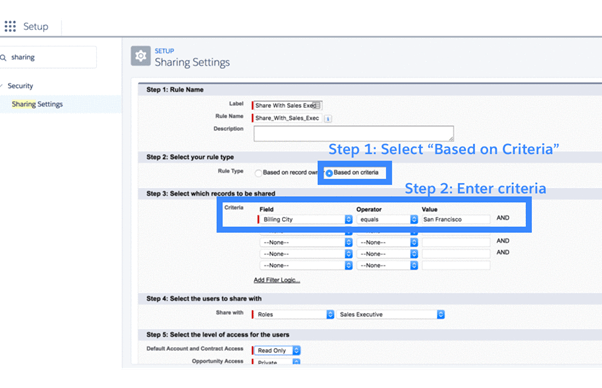
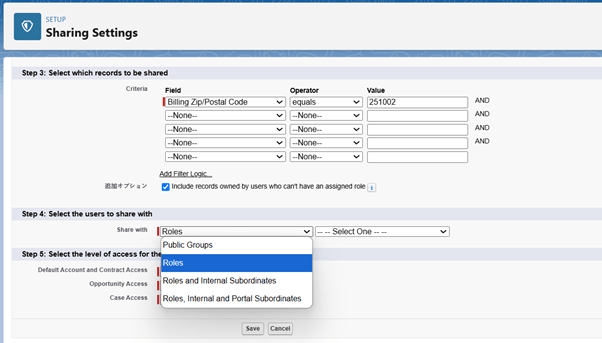
- Criteria-based sharing rules let users access records based on the value of a field in a record, irrespective of who owns the record.
- For example, if Maria wants to meet with all accounts in San Francisco, an admin might set a criteria-based sharing rule to share with Maria all accounts whose billing city is San Francisco.
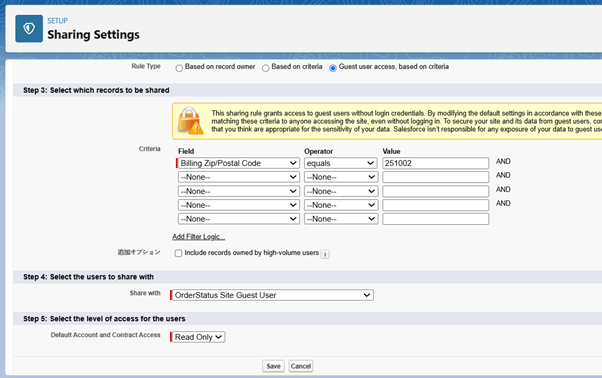
3.3 Guest user sharing rules
A guest user sharing rule grants read-only record access to unauthenticated guest users. It is really a special type of criteria-based sharing rule.
3.4 Record-level-security: manual sharing
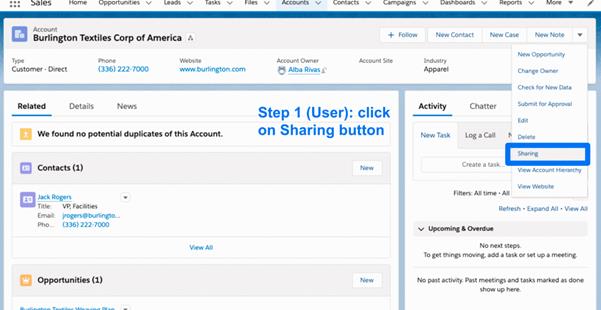
- Manual sharing provides a mechanism to share individual records with others.
- This permission is accessed through the Sharing button on the record details page, and lets end-users share individual record with others.
- Note: This is only available if the OWD is private or public read-only because otherwise (say public read/write), you wouldn’t need it.
3.5 Record-level-security: Apex managed sharing
What is Apex Managed Sharing?
In Simple Words:
Apex managed sharing means writing custom code (in a language called Apex, which is like Java for Salesforce) to automatically give users access to specific records , when you can’t do it through the regular UI settings or sharing rules .
🧒 Analogy: Think of It Like a Custom Door Key
Imagine your Salesforce data as rooms (objects like Accounts, Contacts, etc.). Normally, you control who gets into each room using keys that are built-in (like roles, sharing rules, profiles).
But sometimes:
- You need someone to get into a room only under special conditions .
- Or maybe they should only get in if a certain field changes .
In those cases, you might need a custom key made just for that situation — and that’s where Apex managed sharing comes in.
💡 Real-Life Example (Maria’s Case)
Let’s go back to Maria:
Situation:
- Maria notices that some premium accounts have a Customer Service Lead assigned via a custom field (Customer_Service_Lead__c).
- She manually shares each premium account with that lead user — but it takes time and she forgets sometimes.
Problem:
- The Customer Service Lead is not the owner of the record.
- They only need access to some accounts — not all.
- This can’t be handled by standard sharing rules because:
- Sharing rules don’t support field-based sharing like this.
- It depends on a custom field value changing.
Solution:
The admin team asks the developers to write an Apex trigger that does this:
Whenever a premium account has a Customer Service Lead assigned, automatically share that account with that user.
This is Apex managed sharing .
🛠️ How Does It Work?
Here’s what happens behind the scenes:
- A new Account is created or updated.
- The Customer_Service_Lead__c field is filled in.
- The Apex trigger runs.
- It creates a sharing record (e.g., AccountShare) that gives the specified user access to that Account.// Simplified version of what the code might look like
trigger SharePremiumAccounts on Account (after insert, after update) {
List<AccountShare> accountShares = new List<AccountShare>();
for (Account acc : Trigger.new) {
if (acc.Type == ‘Premium’ && acc.Customer_Service_Lead__c != null) {
accountShares.add(new AccountShare(
AccountId = acc.Id,
UserOrGroupId = acc.Customer_Service_Lead__c,
AccessLevel = ‘Edit’
));
}
}
insert accountShares;
}
✅ Why Can’t We Use Standard Sharing Rules Here?
Because:
- Sharing rules can only use:
- Record ownership
- Field values from a limited set of fields (not all custom fields)
- Criteria based on formulas or relationships that are supported
- They can’t react dynamically to every change in a custom field.
- They don’t run in real time like triggers do.
So, Apex managed sharing fills the gap when you need more flexibility than what the UI allows.
📌 When Do You Need Apex Managed Sharing?
You’ll probably need it if:
- You want to share records based on custom logic .
- You depend on field values that aren’t supported in sharing rules.
- You want to automate complex sharing scenarios across multiple objects or users.
- You need to cascade sharing between related records (e.g., share Opportunity when Account is shared).
🎯 Summary (Simple Version)
| Concept | Explanation |
| Apex Managed Sharing | Writing code to automatically give users access to specific records. |
| Why needed? | Because standard tools (like sharing rules) can’t handle every possible scenario. |
| Example | Automatically sharing an Account with a “Customer Service Lead” when a field is filled. |
| How it works | Code runs when a record changes, creates a sharing entry (AccountShare,ContactShare, etc.) |
| Who uses it? | Admins + Developers for advanced security automation |
What Is Apex Managed Sharing?
Apex managed sharing is a way to programmatically (via code) grant access to specific records for users or groups beyond the default sharing model (like OWDs, role hierarchies, or standard sharing rules).
It gives admins and developers fine-grained control over record-level access when standard tools aren’t enough .
🔑 Important: Only available in Enterprise Edition , Performance Edition , Unlimited Edition , and Developer Edition .
⚙️ How Does It Work?
Salesforce provides special objects called [Object]Share objects (e.g., AccountShare, ContactShare) that you can insert, update, or delete via Apex to control who gets access to which records.
Key Concepts:
- You write an Apex trigger or class .
- In the code, you create and insert a [Object]Share record.
- This gives a user or group Read or Edit access to a specific record.
📌 Example Use Cases
| Scenario | Why Apex Sharing Needed |
| Share premium accounts with assigned Customer Service Lead | Can’t be done via standard sharing rules if based on custom field |
| Share Opportunity with team members dynamically | Based on complex logic like territory, product type, etc. |
| Cascade sharing from Account to related Contacts | Standard parent-child sharing doesn’t support this by default |
| Grant temporary access for audit teams | Time-based or event-driven access |
📦 Components Involved in Apex Managed Sharing
Let’s break down the main pieces you’ll work with:
1. [Object]Share Objects
These are the actual sharing records you manipulate via code.
| Object | Share Object Name |
| Account | AccountShare |
| Contact | ContactShare |
| Opportunity | OpportunityShare |
| Custom Object (MyObject__c) | MyObject__Share |
Each of these has fields like:
| Field | Description |
| AccountId/ContactIdetc. | The ID of the record being shared |
| UserOrGroupId | The ID of the user or public group getting access |
| AccessLevel | ‘Read’or‘Edit’ |
| RowCause | Describes why the sharing exists (e.g., custom reason) |
| LastModifiedDate,LastModifiedById | Audit info |
2. Custom RowCause (Optional but Recommended)
You should define a custom row cause using a custom metadata type or custom setting , so you can identify why a share was created.
Example:
apex
1
Schema.AccountShare.RowCause CUSTOM_CAUSE = Schema.AccountShare.RowCause.Custom_Territory_Share;
This helps avoid conflicts and lets you update/delete only your own shares later.
3. Public Groups or Roles
Sharing is usually done with:
- A specific user
- A public group
- A role or role + subordinates
You store their IDs in the UserOrGroupId field.
4. Apex Trigger or Class
Most often, you’ll write a trigger on a record (like Account) that fires when something changes, and then create the appropriate share records.
🛠️ Step-by-Step: How to Create Apex Managed Sharing
✅ Step 1: Decide What You Want to Share
Example: Share Account records with a Customer Service Lead when they’re assigned.
✅ Step 2: Create a Custom Row Cause (Recommended)
Go to:
Setup > Object Manager > [Object] > Row Causes
Click “New” and enter a label like “Customer_Service_Lead_Share”
Now you can refer to it in code:
apex
1
Schema.AccountShare.RowCause CUSTOM_CAUSE = Schema.AccountShare.RowCause.Customer_Service_Lead_Share;
✅ Step 3: Write Apex Trigger or Class
Here’s a simplified example:
trigger AutoSharePremiumAccounts on Account (after insert, after update) {
List<AccountShare> accountShares = new List<AccountShare>();
for (Account acc : Trigger.new) {
Account oldAcc = Trigger.oldMap.get(acc.Id);
// Only run if Customer_Service_Lead__c changed or is new
if ((acc.Type == ‘Premium’) && acc.Customer_Service_Lead__c != null &&
(Trigger.isInsert || (Trigger.isUpdate && acc.Customer_Service_Lead__c != oldAcc.Customer_Service_Lead__c))) {
accountShares.add(new AccountShare(
AccountId = acc.Id,
UserOrGroupId = acc.Customer_Service_Lead__c,
AccessLevel = ‘Edit’,
RowCause = Schema.AccountShare.RowCause.Customer_Service_Lead_Share
));
}
}
if (!accountShares.isEmpty()) {
insert accountShares;
}
}
✅ Step 4: Test Your Code
Use test classes to simulate different scenarios:
- New premium account
- Change in Customer Service Lead
- Non-premium account (should not share)
Make sure you cover all cases and handle governor limits.
✅ Step 5: Deploy & Monitor
Once tested:
- Deploy to production.
- Monitor via:
- Debug logs
- Sharing button on records
- Custom reports or dashboards
🧮 Governor Limits to Be Aware Of
Salesforce enforces strict limits on Apex sharing operations:
| Limit | Description |
| 150 DML statements per transaction | Each insert counts as one |
| 10,000 DML rows per transaction | Total number of share records inserted |
| Query limits | Don’t forget SOQL query limits too |
So always bulkify your code!
🔁 Updating or Removing Apex Shares
Sometimes you may want to:
- Remove access when a field changes
- Update access level
To do this:
- Query existing shares with your custom row cause
- Delete or modify them
Example:
List<AccountShare> existingShares = [
SELECT Id
FROM AccountShare
WHERE AccountId IN :accountIds AND RowCause = ‘Customer_Service_Lead_Share’
];
delete existingShares;
🎯 Best Practices
| Practice | Reason |
| Use a custom RowCause | Helps track why a share exists and avoid conflicts |
| Bulkify your code | Avoid hitting governor limits |
| Handle updates carefully | Only re-share when needed |
| Use triggers or scheduled jobs wisely | Ensure real-time or batch sharing works as expected |
| Document everything | Future admins will thank you |
📋 Summary Table
| Component | Purpose |
| [Object]Shareobject | Used to grant access to a record |
| UserOrGroupId | Who gets access (user/group/role) |
| AccessLevel | ‘Read’or‘Edit’ |
| RowCause | Explains why the share exists |
| Apex Trigger/Class | Automates the sharing logic |
| Public Group or Role | Defines who gets access |
| Governor Limits | Must follow Salesforce limits |
💬 Final Thoughts
Apex managed sharing is powerful but should be used only when:
- Standard sharing rules can’t do what you need.
- You have dynamic or complex access requirements.
- You need automation beyond manual sharing.
It’s not for beginners — but once you get the hang of it, it becomes a superpower for building secure, automated Salesforce systems.
📖 The Story: Meet “TechGear Inc.”
TechGear Inc. is a growing tech company that sells gadgets online and in stores. They have:
- Sales Reps in different regions (US, Europe, Asia)
- Account Executives who own accounts
- Customer Success Managers (CSMs) who support clients after sales
- Marketing teams that manage campaigns
- Support Teams handling cases
Let’s walk through how they manage record access , sharing , and data quality using Salesforce features like:
- Sharing Rules
- Apex Managed Sharing
- Territory Management
- Teams
- Duplicate Rules
🧱 1. Sharing Rules – “The Basic Access Builder”
Scenario :
Sales Rep Maria owns an account called “Apple Tech” . She wants the North America Sales Manager to see all her accounts for review purposes.
What They Do :
They create a sharing rule :
Share all accounts owned by users in the “North America Sales Rep” role with the “North America Sales Manager” role — Read Only.
✅ Use Case: Simple ownership-based sharing across roles or groups.
⚙️ 2. Apex Managed Sharing – “The Custom Automation Hero”
Scenario :
TechGear has premium customers. Each has a Customer Success Manager (CSM) assigned via a custom field CSM__c. CSMs need access to their assigned accounts automatically.
What They Do :
A developer writes an Apex trigger that runs when the CSM field changes:
Automatically shares the account with the new CSM with Read/Write access.
✅ Use Case: When standard sharing rules can’t handle dynamic field-based sharing.
🌍 3. Territory Management – “The Regional Data Organizer”
Scenario :
TechGear expands globally. They want sales reps in Europe to only see European accounts. Their Regional Director should see all European accounts, and the VP of Sales should see everything.
What They Do :
Enable Territory Management :
- Create territories: Europe, North America, Asia.
- Assign users to appropriate territories.
- Define hierarchy so higher-level users can see data from lower ones.
✅ Use Case: For large-scale geographic or segment-based access control.
👥 4. Teams – “The Collaboration Tool”
Scenario :
Maria closes a big deal with “Apple Tech” . She adds:
- A Solution Engineer to the Opportunity Team.
- A Legal Reviewer to ensure contract compliance.
- A Customer Success Manager to the Account Team.
What They Do :
Use Opportunity Team and Account Team to give these users access to just that one record.
✅ Use Case: When specific people need access to individual records for collaboration.
🔁 5. Duplicate Rules – “The Data Quality Guardian”
Scenario :
Someone tries to create a new account named “Apple Tech” , but there’s already one in the system.
What They Do :
Create a Duplicate Rule on Account:
If Name matches exactly, show a warning or block creation.
Also add a Matching Rule :
Match if Name is similar, Phone matches, or Email matches.
✅ Use Case: Prevent duplicate records and maintain clean data.
 SFDCWallah
Leave a comment