- From Setup, enter Assisted Setup in the Quick Find box, and then select Assisted Setup under Einstein Sales.
- If it’s your first time visiting the Sales Cloud Einstein setup page, click Get Started.
The setup page shows all the steps you need for Sales Cloud Einstein deployment, including how to assign Einstein to users.
- Click Set Up next to Einstein Opportunity Insights.
- On the Settings page, turn on Opportunity Insights.
- Using the Lightning App Builder, make sure that the Assistant component is added to the Home page and the Einstein Insights component is added to opportunity Lightning pages.
- After insights are available, add the Top Insight field to opportunity list views. Salesforce automatically adds this field to default list views.
- To get all types of Einstein Opportunity Insights, enable Einstein Activity Capture.
Sales Cloud Einstein users see insights on the Einstein Insights component. It takes up to 24 hours for insights to be available.
TIP To get the most out of Einstein Opportunity Insights, tell sales reps to set their Sharing Setting for All Emails and Events to Everyone and add the Top Insight field to their opportunity list views.
To give someone access to Einstein Data Insights, assign one of these permission sets to them:
From Setup, enter Permission Sets in the Quick Find box, then select Permission Sets.
- Click Einstein Analytics Plus User or Einstein Analytics Plus Admin.
- Click Manage Assignments | Add Assignments.
- Select everyone you want to grant Einstein Data Insights access to.
- Click Assign
From Setup, enter Setup Assistant in the Quick Find box, then select Setup Assistant under Sales Cloud Einstein.
- Select who can use Einstein.
- Create a permission set.
- From the License drop-down list, select Sales Cloud Einstein.
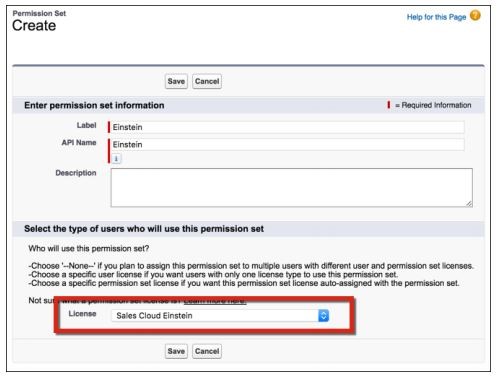
- Click Save.
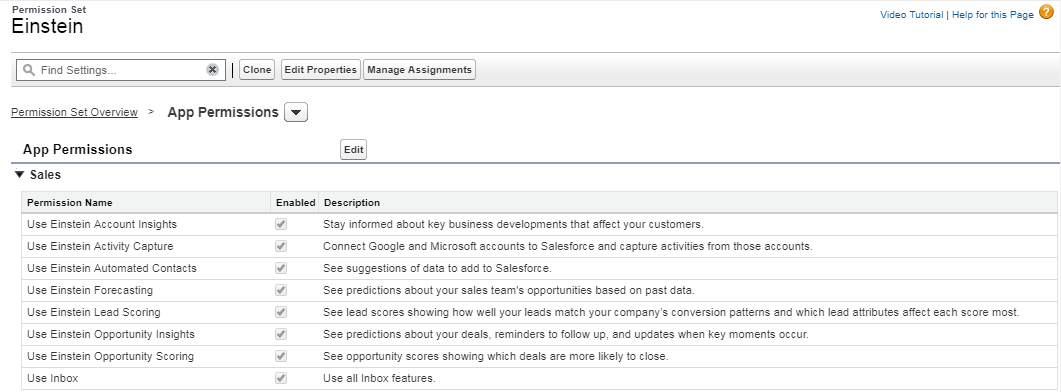
- Click App Permissions.
- Enable app permissions for Einstein features.
- Assign the permission set to users or self.
- From the Einstein Permission set inside App Permissions, enable these Einstein permissions.
Enable these permissions otherwise you will not be able to add the Einstein Insights Standard Component on to the Record Pages.
- Using the Lightning App Builder, add the Assistant component to the Home page and Einstein Insights Component to Lightning pages for accounts, leads, and opportunities
-
After configuring these things create data according to the considerations for the particular object and wait for 24 hours. Insights will be available after that. We can create list view with Insights using Top Insights Field.
 SFDCWallah
Leave a comment