Salesforce IoT
To learn about Salesforce IoT first we need to learn about IoT
What is IoT?
The Internet of things (IoT) is the network of physical devices, vehicles, home appliances, and other items embedded with electronics, software, sensors, actuators, and connectivity which enables these things to connect, collect and exchange data.
Internet of Things Benefits
Creating opportunities for more direct integration of the physical world into computer-based systems, resulting in efficiency improvements, economic benefits, and reduced human efforts.
Better Decision Making
At first, the above benefits will impact your bottom line by reducing expenses. Its uniqueness gives many organizations a strategic advantage over the competitors. This advantage will be valuable to companies now and into the next decade.
Internet of Things Threats
Security and Privacy
The hacking of companies
Stolen Identities
The hijacking of app-connected cars
Data and Complexity
Imagine the complexity of thousands of sensors collecting data.
The sensors do this each hour across a single organization.
You need a plan to process and analyse these huge quantities of data.
Then you can translate these findings into better business practices.
Business and IT Buy-in
Persuading stakeholders to buy into the IoT can be difficult.
Concerns about security and complexity can be intense.
What Is Salesforce IoT?
Salesforce IoT is the glue that connects the world of connected devices with the world of CRM.
Salesforce IoT makes it easy to connect events from devices to contextual data in salesforce and use all of this information to prompt the right action.
Salesforce IoT enables companies to monetize their investment in IoT.
With Salesforce IoT, customers can:
Easily connect everything to CRM
Rapidly innovate in IoT
Engage customers proactively
Key Terms for Salesforce IoT:
Salesforce Platform Events:
Just like custom objects, you define platform events in Salesforce.
You create a platform event definition by giving it a name and adding custom fields.
Platform Events and Custom Objects
A platform event is a special kind of Salesforce entity, similar in many ways to a custom object. An event message is an instance of a platform event, similar to how a record is an instance of a custom object. Unlike with custom objects, you can’t view event records in the Salesforce user interface, or update or delete them.
You can set read and create permissions for platform events. You grant permissions to users in profiles or in permission sets.
Salesforce IoT lets you easily define which pieces of your streaming event data to combine with the contextual data that you already manage in Salesforce. This powerful combination of data informs the rules you define in the orchestration engine and can trigger the appropriate actions, creating relevant, proactive service opportunities, and delightful experiences for your customers.
Salesforce IoT Customer Context :
A context specifies the sources of data that an orchestration can access: one or more platform events and, optionally, a Salesforce object. Each platform event and optional Salesforce object must have a key field whose values are used by each orchestration instance to access the relevant event messages and object record.
For example, in our Flying Fridge use case,
the serial_no key field on our platform event enables an incoming event message to trigger an orchestration instance to run for a specific refrigerator.
That orchestration instance matches that key value against the Fridge_Serial_Number key field on the Asset object to read the corresponding asset record for that same refrigerator.
Notice that the key field names don’t need to match;only the key values and data types must match.
Salesforce IoT orchestrations:
Orchestration includes the automated arrangement, coordination, and management of computer systems, middleware, and services. Orchestration takes advantage of multiple tasks that are automated in order to automatically execute a larger workflow or process. These could be comprised of multiple tasks that are automated and could involve multiple systems.
One key challenge in driving customer engagement is that experiences are often designed as specific sequences of actions (do this, then do that, and so forth). But this isn’t really how people engage with apps or devices. They jump around; they leave tasks unfinished; they get interrupted.
In Salesforce IoT orchestrations, the actions and interactions triggered by events don’t have to follow a specific, linear path.
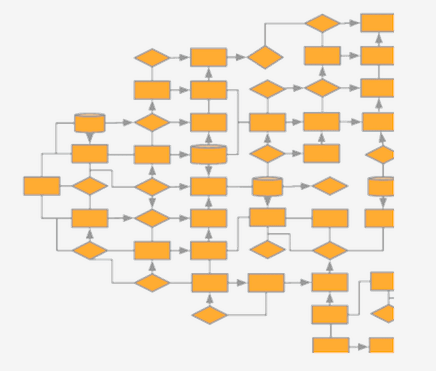
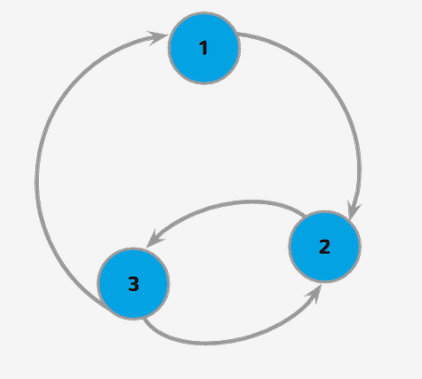
Salesforce IoT is a state machine: a nonlinear workflow engine that consists of states that reflect strategic groupings of objects or people. You define rules that trigger actions or outputs for each state.
Salesforce IoT Is a State Machine:
Salesforce IoT is not a sequential process it just fluctuates between the states, no steps or actions are defined in the middle of two states.
Orchestration States
Create States and Rules
Now we’re ready to create the orchestration states and rules.
States reflect strategic groupings of objects or people.
Rules are the logic that tells an orchestration what to do.
Rules are made up of events, conditions, actions, and, optionally, transitions. You use the same expression syntax used in Salesforce formula fields to create your rules.
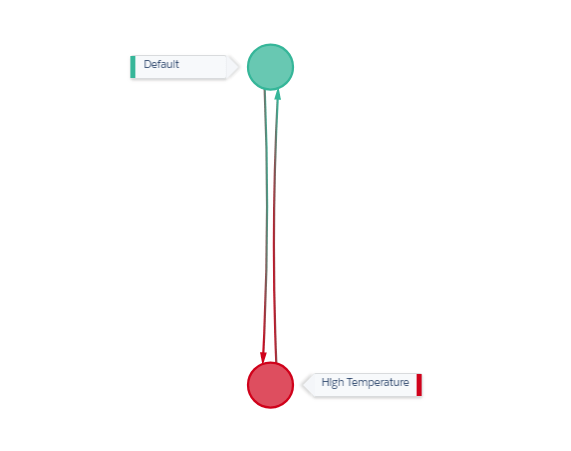
For our use case, we create a rule that tells the orchestration to move a refrigerator from the Default state to a High Temperature state if the fridge sends a temperature
event of more than the maximum high temperature specified for the asset. When the fridge enters the High Temperature state, a service case is automatically created.
Summary of key terms:
Combination of states and logic are orchestrations.
Remember, rules are the logic that tell an orchestration what to do.
Rules are made up of events, conditions, actions, and, optionally, transitions.
Actions are the part of rules triggered by events.
You can think of rules as traffic controllers, and actions are the planes taking off and landing triggered by the go-ahead from the air traffic controllers.
Use Case: Source Trailhead
Flying Fridge wants to monitor the interior temperature of the refrigerators and open a service case if a refrigerator’s interior temperature is above 50 degrees Fahrenheit.
Enable Salesforce IoT
Before you start creating contexts and orchestrations, you first enable Salesforce IoT. Here’s how you do it.
1.From Setup, enter IoT in the Quick Find box, then select Get Started.
2.In the Enable Salesforce IoT box, click Enable.
Define a platform event named Fridge Event.
1.From Setup, enter Platform Events in the Quick Find box, then select Platform Events.
2.On the Platform Events page, click New Platform Event.
3.For Label, enter Flying Fridge Event.
4.For Plural Label, enter Flying Fridge Events.
5.For Description, enter Flying Fridge events received from commercial refrigerators.
6.Click Save.
7.In the Custom Fields & Relationships related list, click New.
8.Select Text, and click Next.
9.For Field Label/Name, enter serial_no.
Later, we use this serial_no field as the key for matching event messages with orchestration instances.
10.For Length, enter 255.
11.Click Required.
The platform event key field must be a required field.
12.Keep the defaults for the other fields and leave the Description field empty. Click Save.
13.Follow steps 7, 8, and 9 to add the next two fields:
| door_open | door_open__c | Checkbox |
| temperature | temperature__c | Number(18.0) |
Create a Key Field on the Asset Object
Add a custom field to the Asset object that we use as the key.
1.In Setup, click Object Manager.
2.In Object Manager, select Asset.
3.In Asset, select Fields & Relationships.
4.On the Fields & Relationships page, click New.
5.Select Text, and click Next.
6.For Field Label, enter Fridge Serial Number.
7.For Length, enter 255.
8.For Field Name, enter Fridge_Serial_Number.
9.Select Unique. Do not allow duplicate values.
10.Click Next.
11.Keep the defaults for field-level security, and click Next.
12.For Add to page layouts, click Save.
Let’s create the context for our Flying Fridge use case.
1.From Setup, enter IoT in the Quick Find box, then select Contexts.
2.Click New Context.
3.For Context Name, enter Flying Fridge Context.
4.For Description, enter All the refrigerator events and object data for fridge orchestrations. This description is displayed in the context detail page.
5.Click Create.
Now we add our event data and reference data to the context. In the context, click Edit.
Click Add Event Data.
From the available objects, select Flying Fridge Event. Click Next.
In Choose the Key, select serial_no__c. Click Apply.
Now click Add Reference Data.
Under available objects, select Asset. Click Next.
In Choose the Key, select FridgeSerialNumber__c. Click Apply.
Click Save, then Done to exit.
Create the new field.
1.In Setup, click Object Manager.
2.In Object Manager, select Asset.
3.In Asset, select Fields & Relationships.
4.On the Fields & Relationships page, click New.
5.Select Number, and click Next.
6.For Field Label, enter Max High Temp.
7.For Length, enter 18.
8.For Field Name, enter Max_High_Temp.
9.Click Next.
10.Keep the defaults for field-level security, and click Next.
11.For Add to page layouts, click Save.
Now, we create a new asset record.
1.Click New.
2.In New Asset, enter an Asset Name, for example, Flying Fridge Mini.
3.Click Account, and select New Account.
4.For the Account Name, enter Awesome Airline, and click Save.
5.Click Contact, and select New Contact.
6.For Last Name, enter Earhart.
7.For Account Name, select Awesome Airline.
2.In New Asset, enter an Asset Name, for example, Flying Fridge Mini.
8.Click Save.
9.For Fridge Serial Number, enter 1001.
10.For Max High Temp, enter 50.
11.Click Save.
Create an Orchestration
Let’s start by creating an orchestration for our Flying Fridge use case.
1.From Setup, enter IoT in the Quick Find box, then select Orchestrations.
2.Click New Orchestration.
3.For Name, enter Flying Fridge Maintenance.
4.For Context, select Flying Fridge Context.
5.Click Create.
Create States and Rules
Let’s create the High Temperature state.
1.In your Flying Fridge Maintenance orchestration, under the Default state, click + Add State .
2.Underneath the Default state, double-click New State 2, and enter High Temperature.
In the Flying Fridge Maintenance orchestration you created, in the Default state under When, click the dropdown arrow, and select “Flying_Fridge_Event__e”.
2.In the Condition field, enter Flying_Fridge_Event__e.temperature__c >Asset.Max_High_Temp__c .
3.Under Transition, select High Temperature.
And now let’s add the rule to the High Temperature state that automatically creates a service case when the asset enters the High Temperature state.
1.In the High Temperature state, under When, select State Entered.
2.Under Actions, click Add an action, and select Salesforce Record.
3.In New Salesforce Output Action, under Object, select Case.
4.For Action Type, select Create.
5.Click Next.
6.Click Add Field.
7.For Field, select Subject.
8.For Value, enter “Created by Salesforce IoT”. Make sure to include the quotation marks.
9.Select Make each executed action’s response event available to the orchestration.
10.For Response Name, enter caseResponse.
11.For Action Name, enter Create Case.
Click Finish.
In your orchestration, click Save.
Activate an Orchestration
You saved your orchestration, but now you need to Activate it.
- In your orchestration, click Activate.
Send Events to Test an Orchestration
1.In a new browser window, enter https://workbench.developerforce.com.
2.Agree to the terms and log in with your Salesforce credentials you use for the Trailhead Playground or Developer Edition you’ve used to do all the setup so far.
3.Click the Utilities dropdown, and select REST Explorer.
4.In the REST Explorer page, for HTTP method, select POST.
5.Append “/sobjects/Flying_Fridge_Event__e” to the POST URL in Workbench, so it displays this:/services/data/<version>/sobjects/Flying_Fridge_Event__e.
6.In the Request Body, enter this payload:
{
“serial_no__c”: “1001”,
“door_open__c”: false,
“temperature__c”: 39
}
Click Execute to verify that there are no errors. If there are no errors, you see “success: true” below the request body.
Now, back in Salesforce, you can check the Traffic view of your orchestration and see that there is one instance in the Default state, which means that the refrigerator temperature does not exceed the maximum.
 SFDCWallah
Leave a comment