In this blog we are going to learn about how to use external JavaScript and its method in lightning component.
Points need to remember before using external JS—————–
1. To reference a JavaScript library that you’ve uploaded as a static resource, use a <ltng:require> tag in your .cmp or .app markup.
2. The framework’s content security policy mandates that external JavaScript libraries must be uploaded to Salesforce static resources.
3. <ltng:require scripts=”{!$Resource.resourceName}” afterScriptsLoaded=” {!c.afterScriptsLoaded}” />
4. In a managed packaged, the resource name must include the package namespace prefix, such as $Resource.yourNamespace__resourceName.
5. The afterScriptsLoaded action in the client-side controller is called after the scripts are loaded and the component is rendered.
6. Don’t use the init event to access scripts loaded by <ltng:require>.These scripts load asynchronously and are most likely not available when the init event handler is called.
7. Loading Order
The scripts are loaded in the order that they are listed.
8. One-Time Loading
Scripts load only once, even if they’re specified in multiple <ltng:require> tags in the same component or across different components.
9. Parallel Loading
Use separate <ltng:require> tags for parallel loading if you have multiple sets of scripts that are not dependent on each other.
10. Encapsulation
To ensure encapsulation and reusability, add the <ltng:require> tag to every .cmp or .app resource that uses the JavaScript library.
11. <ltng:require> also has a styles attribute to load a list of CSS resources.You can set the scripts and styles attributes in one <ltng:require> tag.
12. If you’re using an external library to work with your HTML elements after rendering, use afterScriptsLoaded to wire up a client-side controller. The following example sets up a chart using the Chart.js library, which is uploaded as a static resource.

13. The component’s client-side controller sets up the chart after component initialization and rendering.
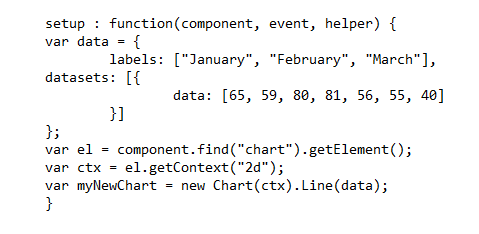
First, we learn how to use external JavaScript library in lightning component.
JavaScript Library
Following steps are used to load the external Java Script library in lightning component.
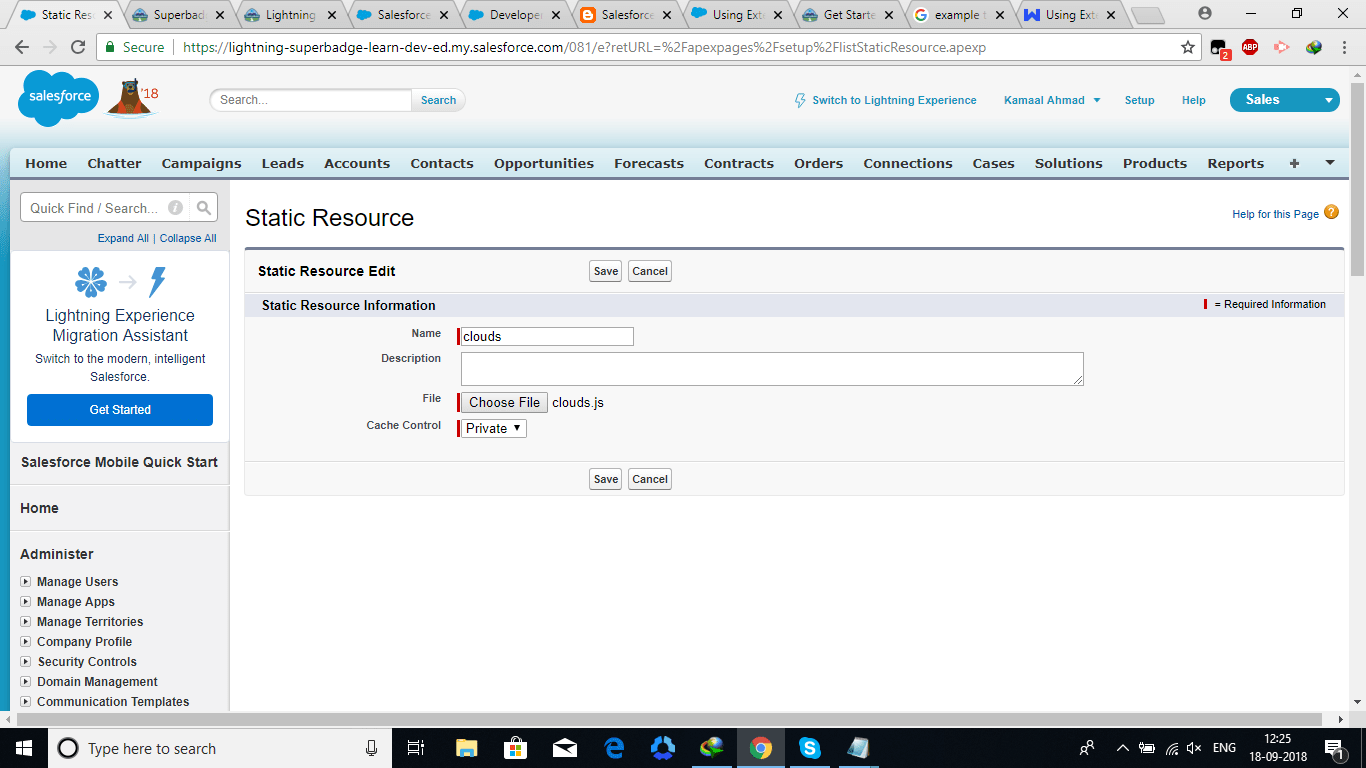
- Load your external java script library in static resource. Goto >>> SetUp >>> Custom Code >>> Static Resources
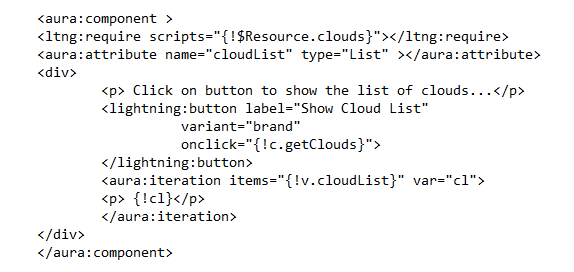
- Use <ltng:require> tag to load the Java Script library in lightning component as follows.
<!– For one JS file/library –>
<!– Here JSFilename is static resource name –>
<ltng:require scripts=”{!$Resorce.JSFilename}”></ltng:require>
<!– For Multiple JS file/library –>
<!– Here JSFilename1 and JSFilename2 is static resource name –>

Example:
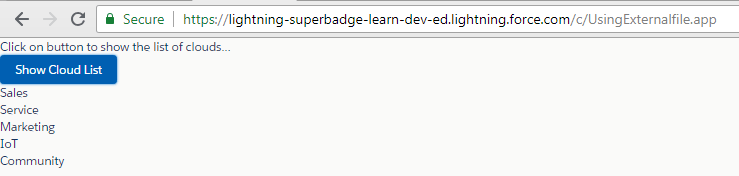
In this example we print the list of different cloud provided by SFDC which is predefined in external JavaScript library.
1) Create a js file as follows:
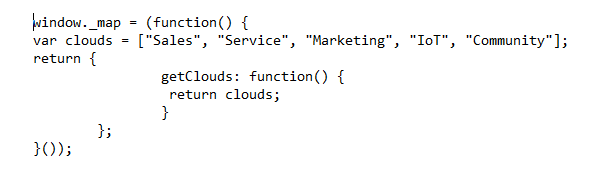
2) Upload the external JS file/library in static resource. Goto >>> SetUp >>> Custom Code >>> Static Resources
3) Create a lightning component and write following code.
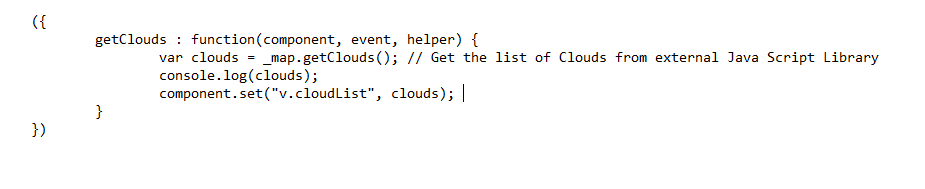
4) Controller code.
Output:
 SFDCWallah
Leave a comment